
Save your edited photo
Choose an export size, check the dimensions and download your JPEG.
- Open your photo in the editor and finish your changes. If Crop & rotate is open, choose Apply or Cancel first.
- Choose Export, the download button in the editor header.
- Check the pixel dimensions next to Standard or Original resolution, then choose that option. Original resolution requires Pro access.
- Find the download named your-filename-photonica.jpg in your browser’s downloads. Open it to check the saved result.
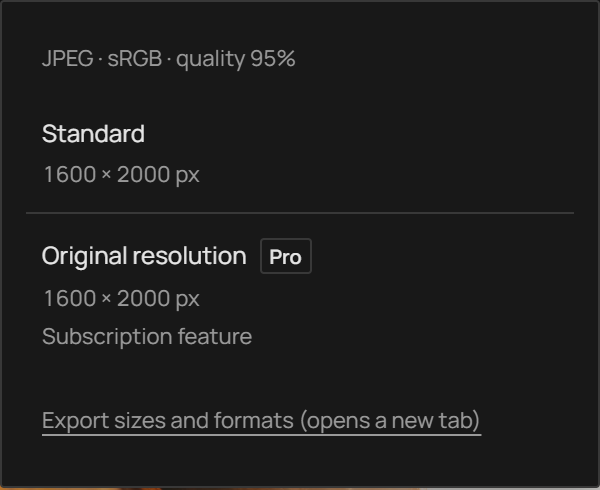
Which size will I get?
| Option | Source used | After crop and frame |
|---|---|---|
| Standard · Free | A working image up to 2560 px on its longest side. Smaller photos stay smaller. | Crop and straightening can reduce the size. A frame changes the layout and the photo area within it. |
| Original resolution · Pro | The original photo’s resolution, subject to the device’s GPU and memory limits. | The same crop and frame apply. This does not restore cropped pixels or upscale the photo. |
The number in the Export menu is the final file size in pixels, including any frame. The 2560 px limit applies to the Free working source before cropping; it is not a guaranteed output size.
Example without a frame or rotation: a 6000 × 4000 px original becomes a 2560 × 1707 px working image. A centred square crop produces 1707 × 1707 px with Standard or 4000 × 4000 px at Original resolution.
Format and quality
Export is an SDR, sRGB JPEG at fixed 95% quality. There is no quality slider or RAW, PNG or HDR export. Both size options include the current treatment, crop and frame. Processing stays on your device.
If the JPEG does not save
- Check your browser’s downloads first. It may save the file without opening a dialog.
- If Original resolution cannot load, check your connection and try again. If the device cannot render that size, use Standard or a more capable device.
- If a Pro-access message appears, Standard is available for a free treatment. Disable any locked Pro effects or choose Use free settings when offered.
Keep the editor open while you retry. Returning to its home screen, reloading or closing the page ends the photo session. Export before leaving; a preset does not keep your photo or undo history.