
Make a collage from your photos.
Combine 2–9 photos in a grid, film strip or paper layout. Adjust the crops, spacing and background colour, then save your finished collage.
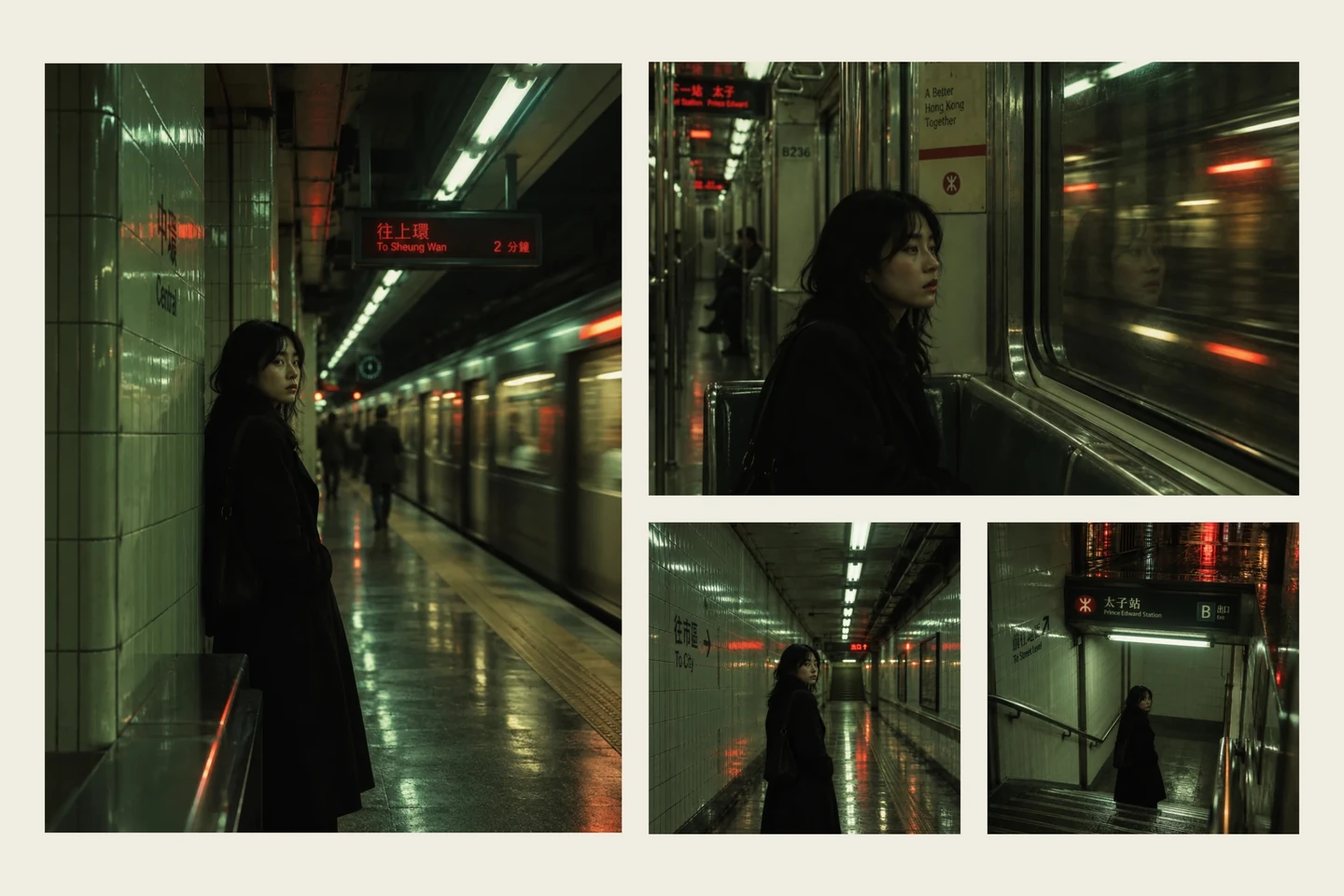
Grids, film and paper.



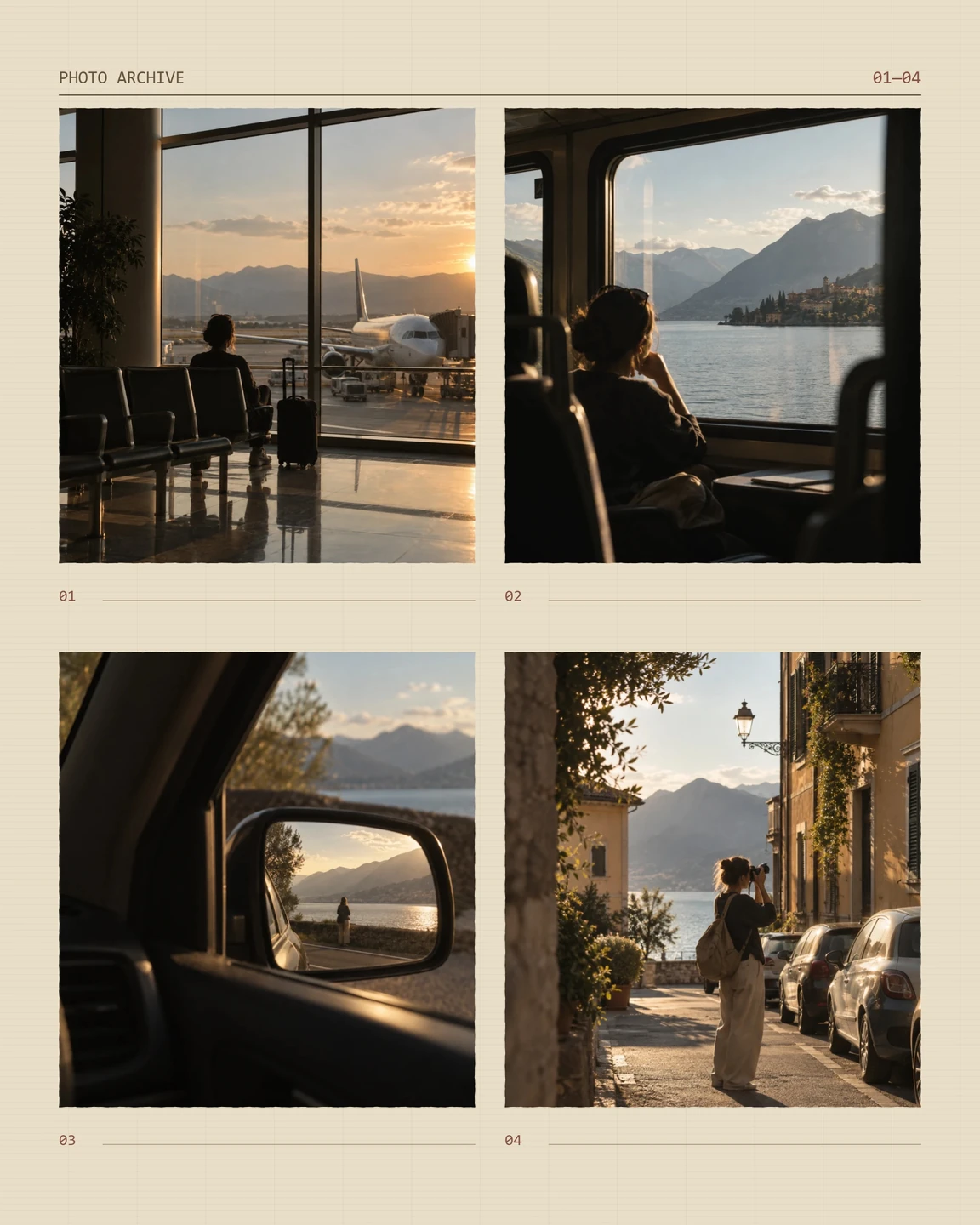
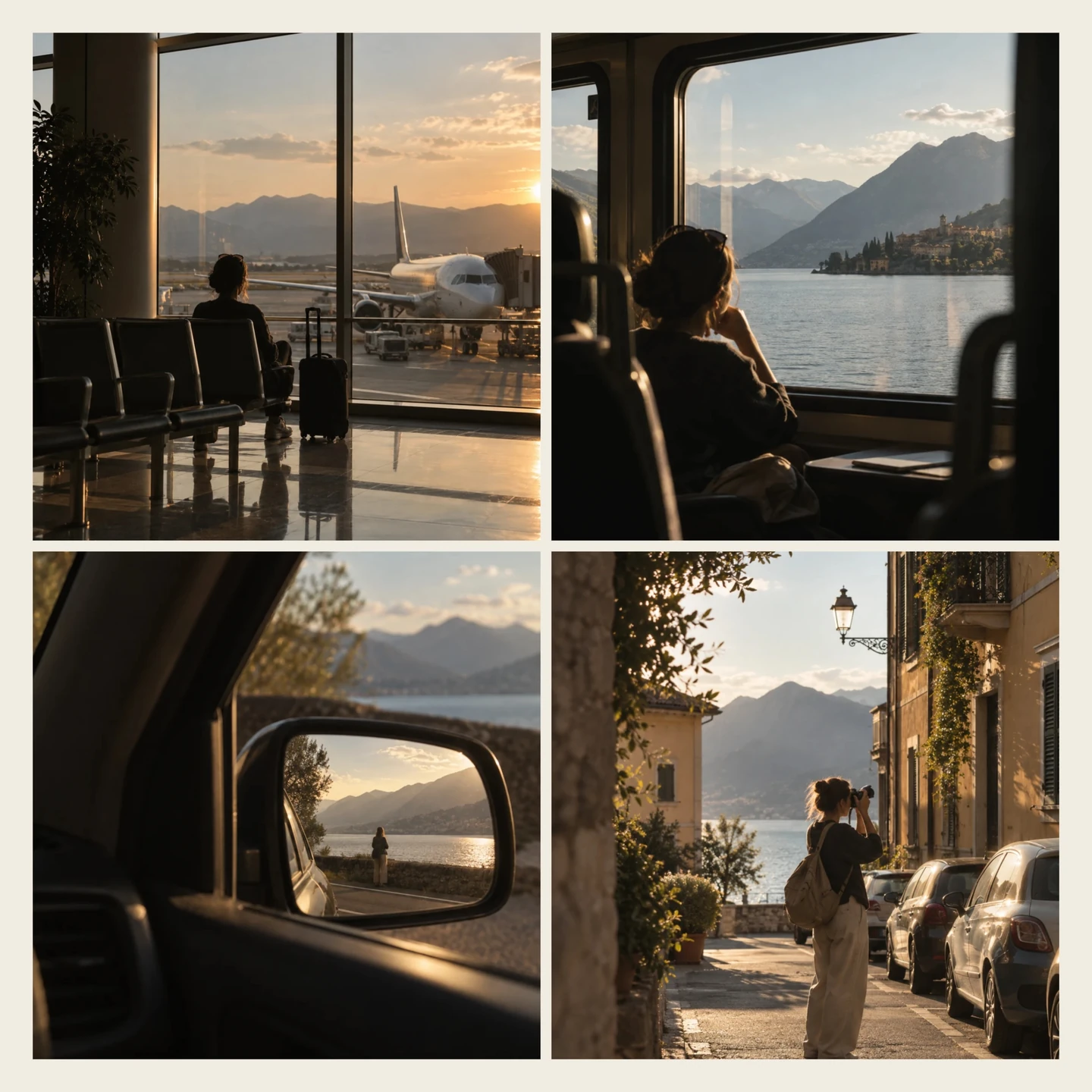
Make the composition yours.
Choose a layout for your photo count, then decide what each frame should show. Add, replace or remove photos as you work; undo brings back an earlier arrangement.
Keep the part that matters.
Move and zoom each photograph inside its frame. Swap two photos to change the sequence without starting over.
Format and spacing.
Keep the layout’s proportions or choose a square, 4:5, 9:16 and other formats. Set the outer margins and gaps between photographs.
Choose your background colour.
Light, dark or colourful: choose from the palette or set your own shade. Background colours are included in Free and Pro.
Start with Free.
Combine 2–9 photos with free pairs, grids and rows. Cropping, rearranging, spacing and background colour are included. Guests can save three times a day; a free account removes the daily limit.
Make a collageGive it the character of Pro.
Open the full layout collection: airy spreads, film strips, photo booth, instant prints, archive sheets and torn paper. Available layouts depend on the number of photos. Try them with your own pictures during the 7-day Pro trial.
Try Pro free for 7 daysThe trial needs no card and has no automatic charge.
Compare plans and subscription termsSave one JPEG: 2560 px on the longest side in standard formats, or 4096 px with Pro. Long strips use larger dimensions, up to 5120 px in Free and 8192 px in Pro. The save menu shows the exact size.
Your first collage, in three steps.
Choose your photographs.
Open the editor, choose Create collage and select 2–9 photos from your device.
Find their arrangement.
Pick a template, adjust the crops and swap photos until the sequence feels right. Finish with your format, spacing and background.
Save the finished image.
Choose Save collage to download one JPEG, ready to share. Save before closing the tab; editable collages are not stored in your account.
Good to know.
How many photos and which file types can I use?
Use 2–9 JPEG, PNG, WebP, HEIC or HEIF photographs. Each file can be up to 100 MiB and 60 megapixels. You can add or remove photographs while working, within the 2–9 limit.
Are my photographs uploaded?
No. Your collage is assembled and exported on your device. The original files stay unchanged.
Can I apply a film look to the whole collage?
The collage editor arranges and crops your photographs. To give them a shared film look first, edit them as a photo series, save the JPEGs, then use those files in your collage.
Photo seriesCan I make a collage on my phone?
Yes. Choose photos from your phone, pick a layout, move and zoom each photo, then save the JPEG in your browser. You can also use Photonica on a computer.
Visuals: Photonica’s original series. Collages assembled and exported in the editor.