
Long exposure, from one photograph.
Turn petals into soft trails. Draw a camera path, then change where the movement blends into your photograph.
In this guide
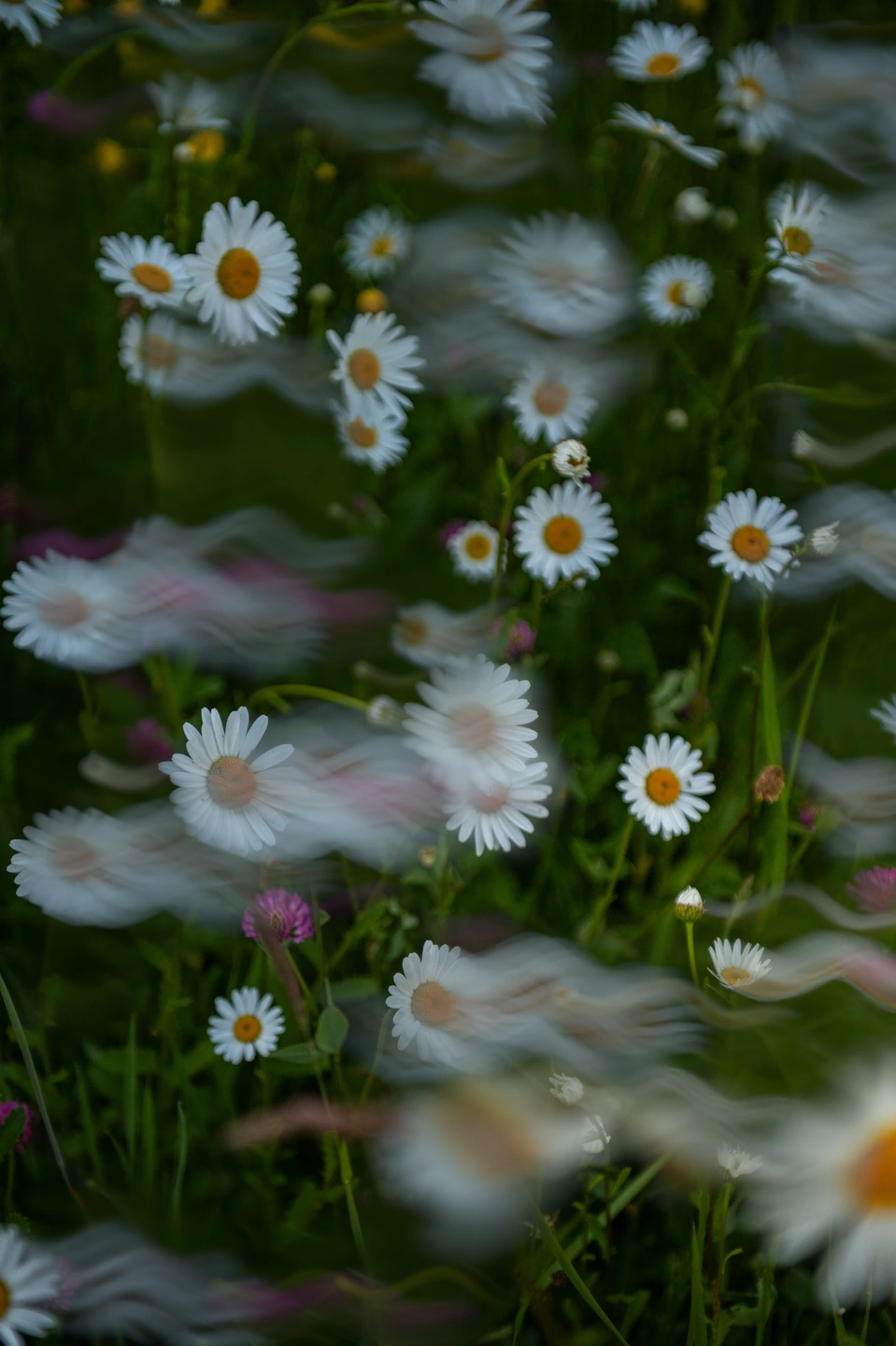
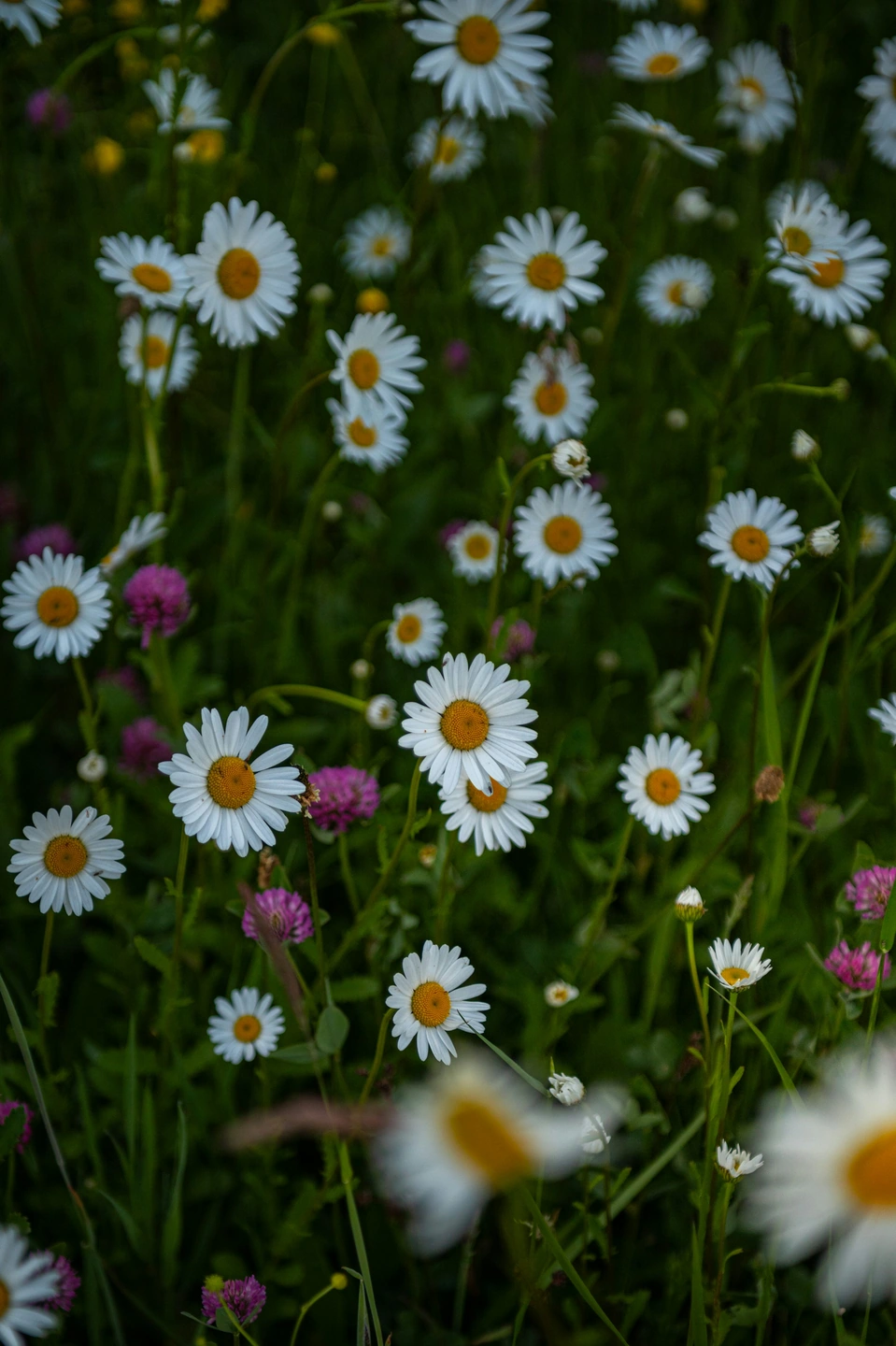
Let the petals move. Keep the photograph.
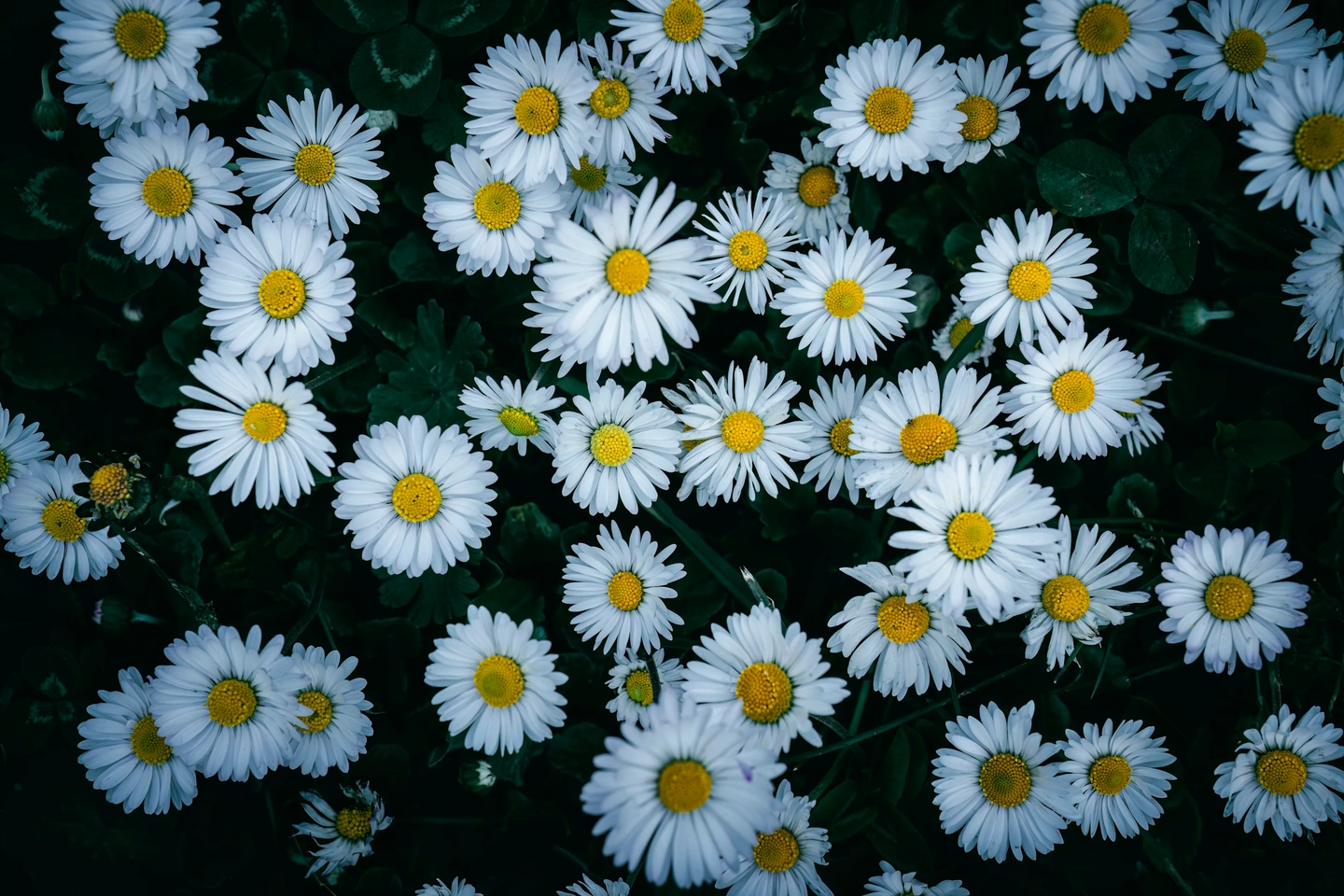
The white daisies leave soft trails across the green background, while other flowers stay clearly visible. Long exposure simulates camera movement in a single still photo and blends it with the original in uneven areas. You can start with an ordinary photo; no long shutter capture is needed.
About these controls
- Camera path
- Choose Draw and trace a short gesture on the photo. A gentle curve gives flowing trails; a straight stroke gives a clearer direction. Done keeps the path and Cancel restores the previous one. Random creates another path.
- Amount
- Lower Amount to bring more of the original photograph back. It changes the strength of the blend while keeping your path and the blend areas.
Keep the gesture. Find a different balance.
Like the movement, but want a different flower to remain clear? Choose Refresh under Blend areas. Compare these two versions: the path and Amount are identical; only the distribution of the effect changes. Refresh does not select a subject, so judge the whole photograph and use Undo if the previous balance worked better.
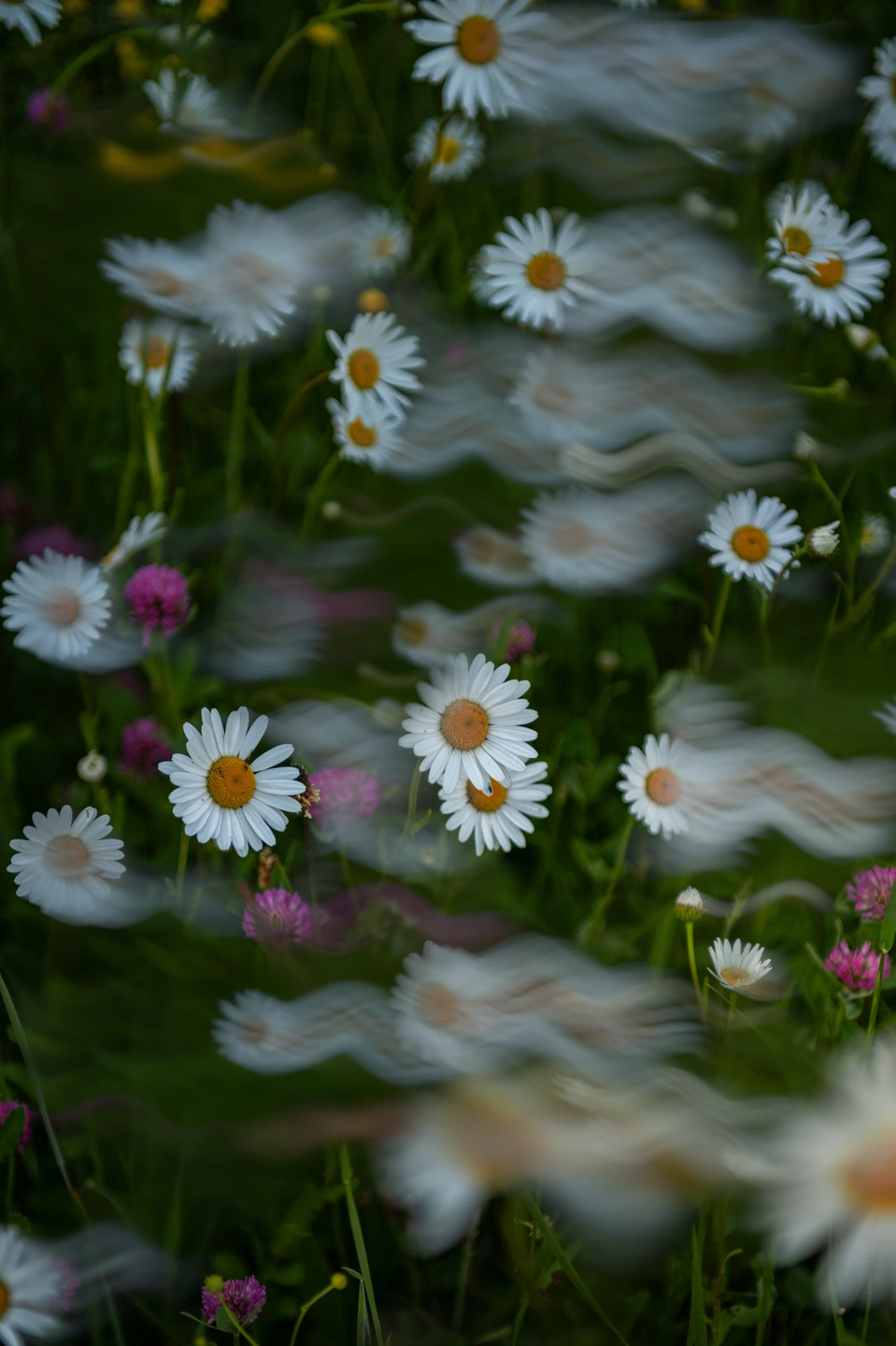
Make a field of flowers flow.
White petals stand out against dark foliage. A short curve draws them into soft trails, while clear flower heads keep the pattern readable. Choose a photograph with distinct blossoms and dark gaps between them, then lower Amount to bring more detail back.
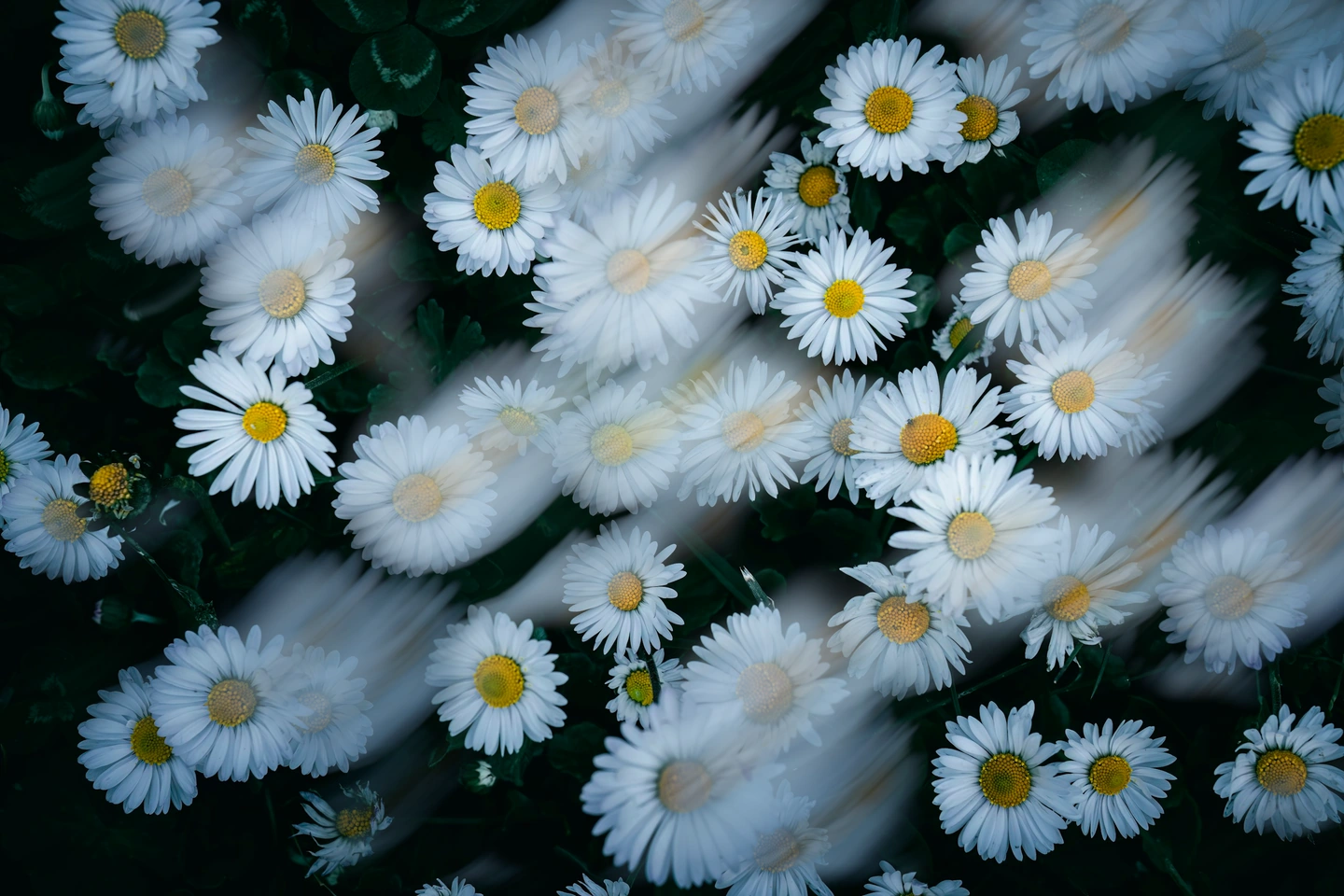
Make your first long exposure effect
- Open a photo and crop it if needed. The camera path uses the visible crop, so you can compose the image first.
- Open Effects → Motion blur → Long exposure. This mode requires Pro access.
- Under Camera path, choose Draw. Trace one short line on the photograph, then choose Done. Use Random if you want a starting idea.
- Adjust Amount. To try different blend areas without changing the path, choose Refresh under Blend areas. Undo returns to the previous result.
- Compare with the original, then export your JPEG. Try photographs with repeated flowers and visible gaps between the petals.
The gesture describes camera movement across the frame. Drawing over a flower does not paint a mask or select that flower. Keep the stroke short to begin with; a new stroke replaces the previous path.
Made with Photonica. Each comparison states which settings change. Film and optical effects are creative interpretations. Source photographs are credited beside each study.