
Why some photos look beautiful and others look ordinary
It is not brighter colour. In a beautiful picture one light colours everything, so the colours agree. The Cloud in Space shows this on your own photo and gathers the colours in one tap.
Two streets down to the sea
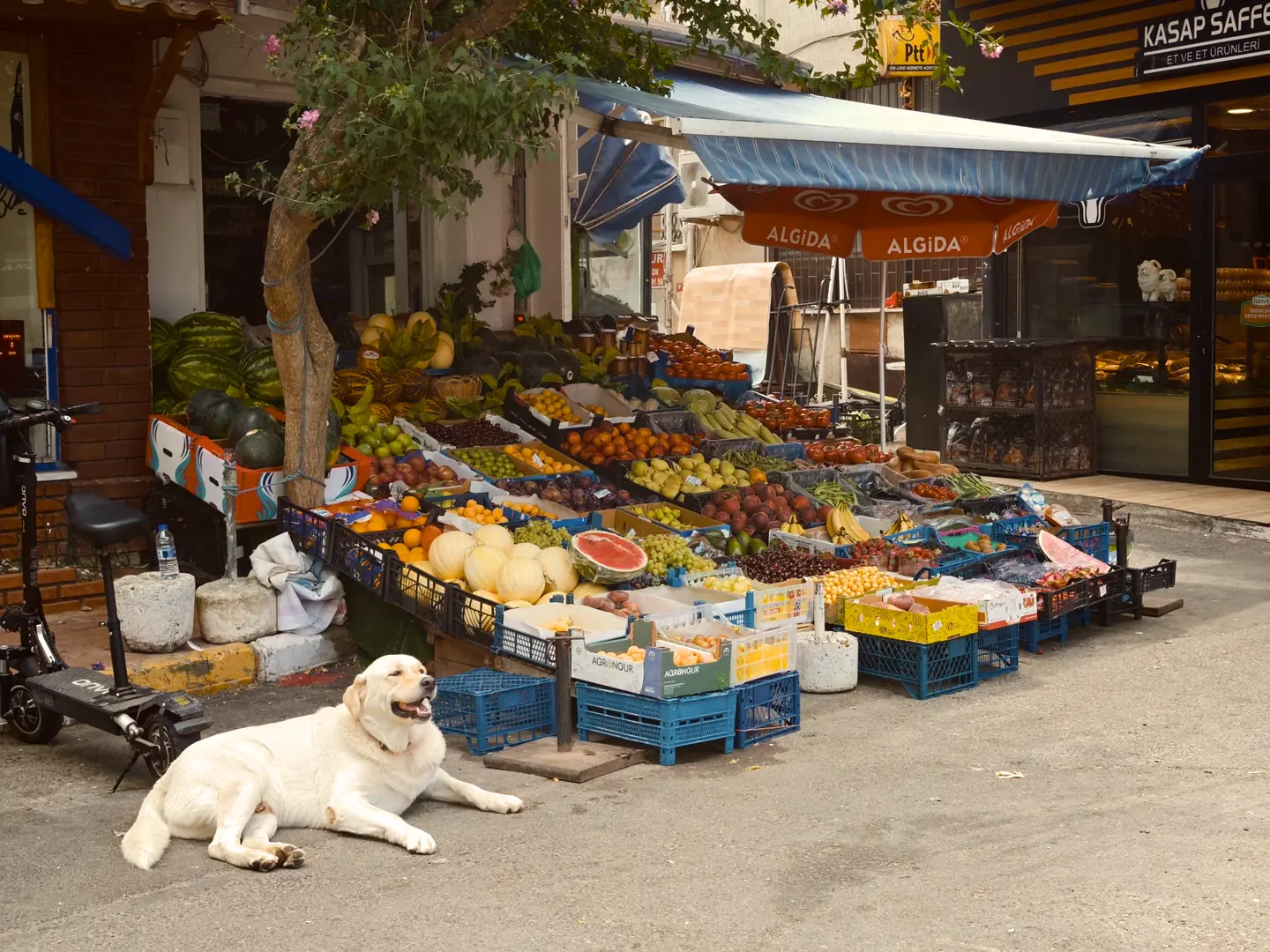
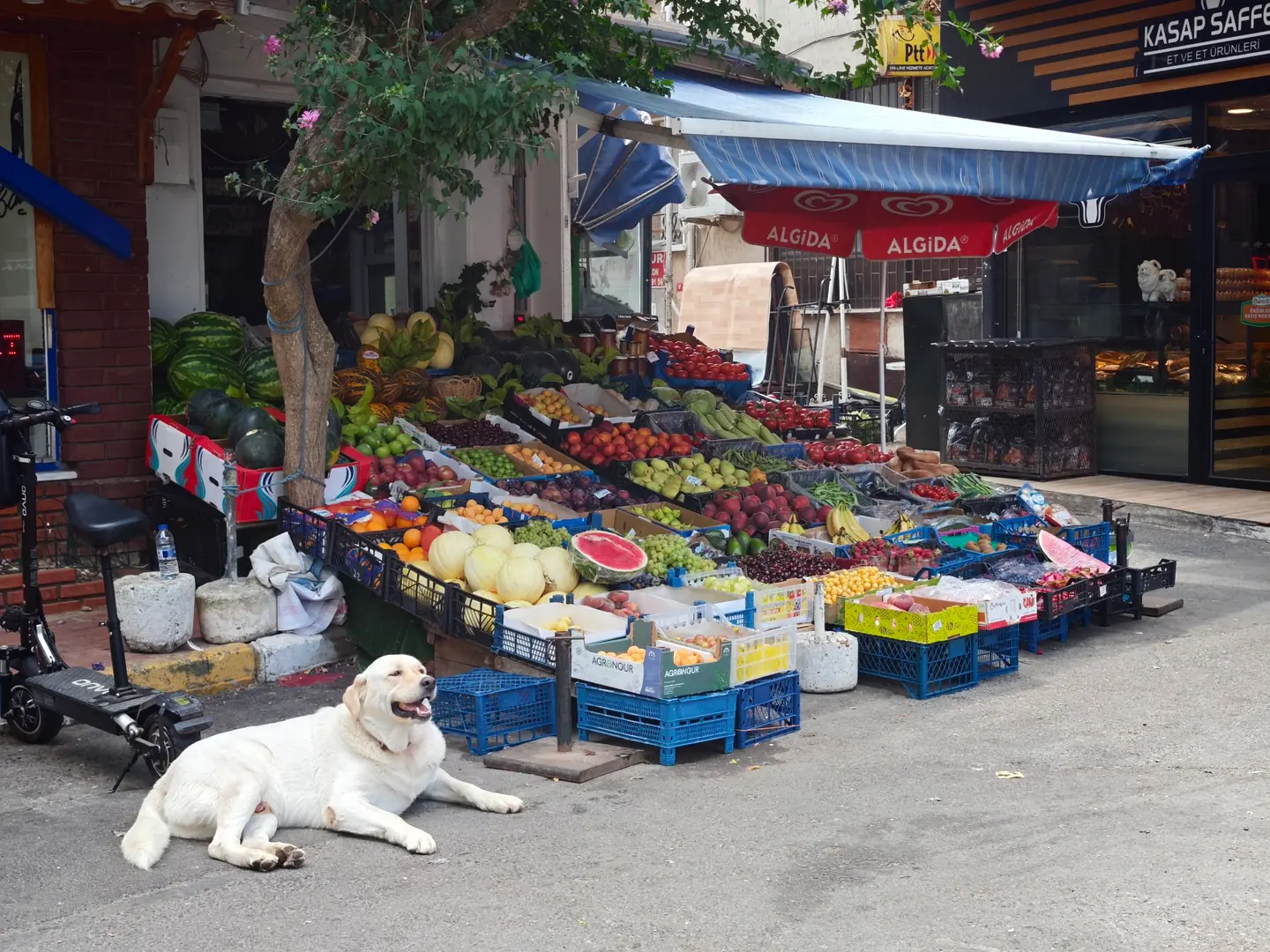
Here are two views of almost the same scene: a street running down to the sea. The first was generated with AI, the second is an ordinary phone photo. Both streets are lovely, so the subject is not what makes the difference. The colour is.
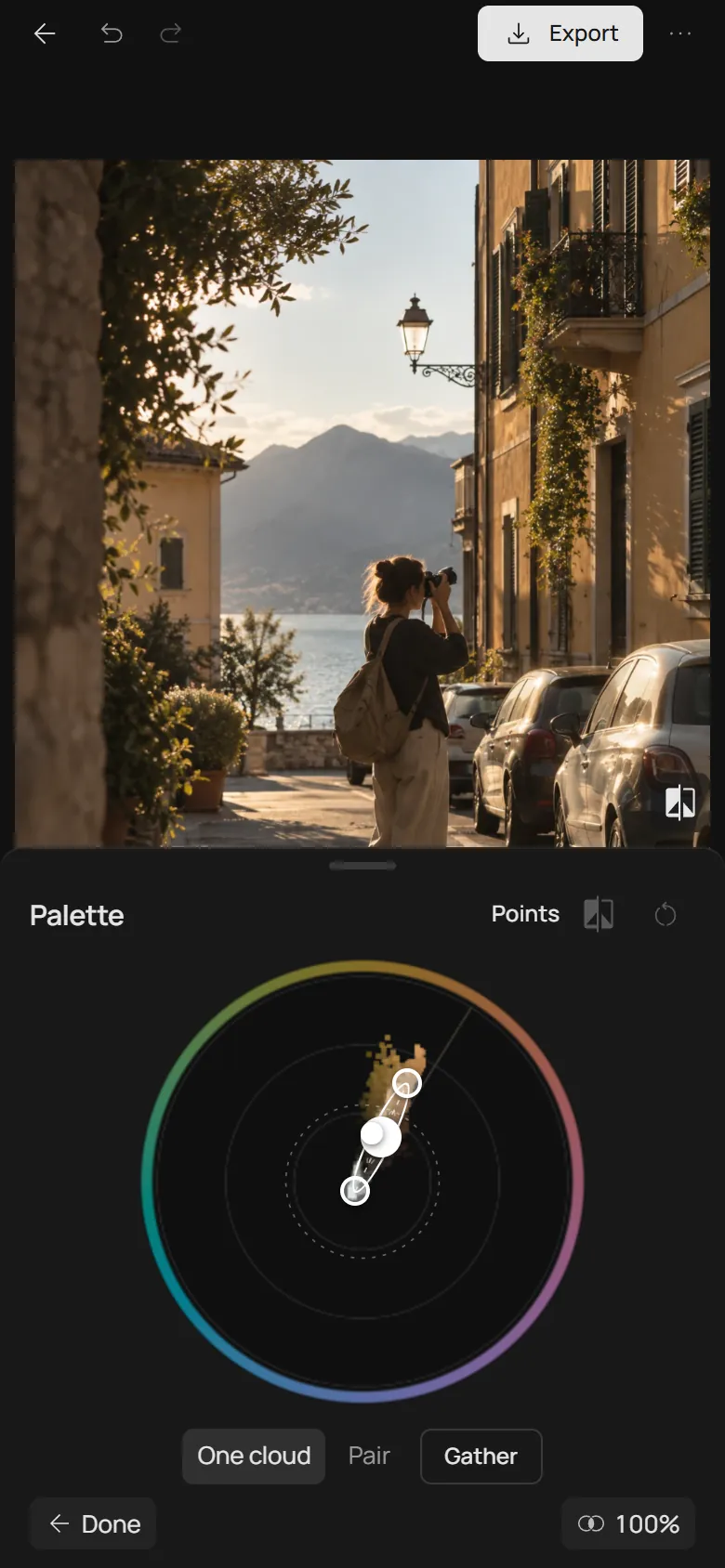
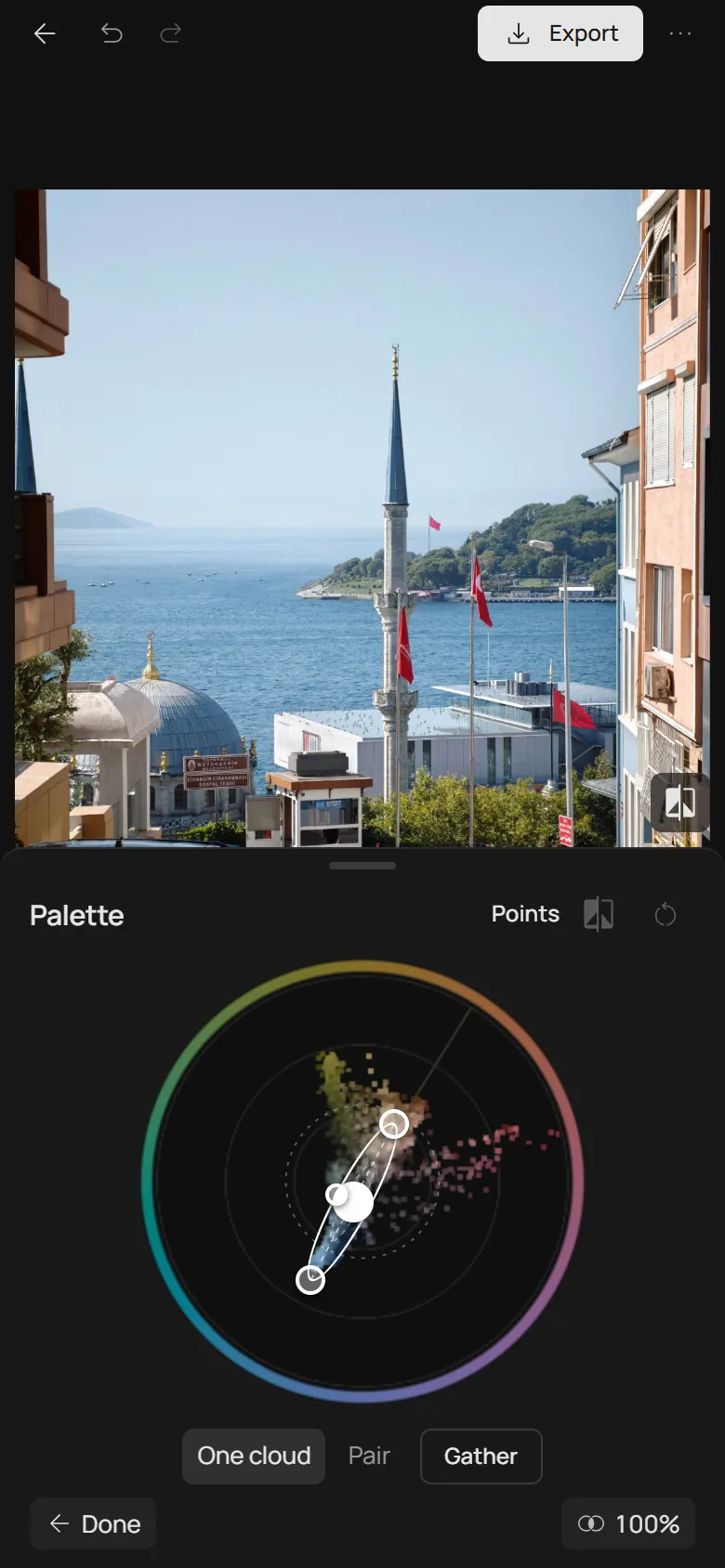
In the first picture one warm light lies over everything: the walls, the road, the sea and even the shadows. The colours agree with each other. In the phone photo every thing keeps its own colour: a pale blue sky, a grey road, a cold sea, pink walls. Nothing is wrong, yet nothing holds the picture together.
How to read the Cloud
Open a photo, turn on Space and open Palette: it opens as the Cloud. Every dot is a small piece of your photo, painted in its own colour. The direction from the centre is the hue, as on the colour ring around the edge. The distance from the centre is how strong the colour is: greys in the middle, vivid colours toward the edge.
The small cross is pure grey, and the thin rings are steps of colour strength. Dots near the centre are drawn faint on purpose: there are so many of them that at full strength the middle would become one bright blot. So a faint dot does not mean the colour is rare. The thin line toward orange is the colour of skin.
The ellipse is the shape of the whole cloud: the inner line marks its dense middle, and the outer line holds almost all of the photo. The dashed circle shows how far beautiful pictures move their colour from grey: nine out of ten keep the middle of their cloud inside it. Further out, a picture starts to look tinted.
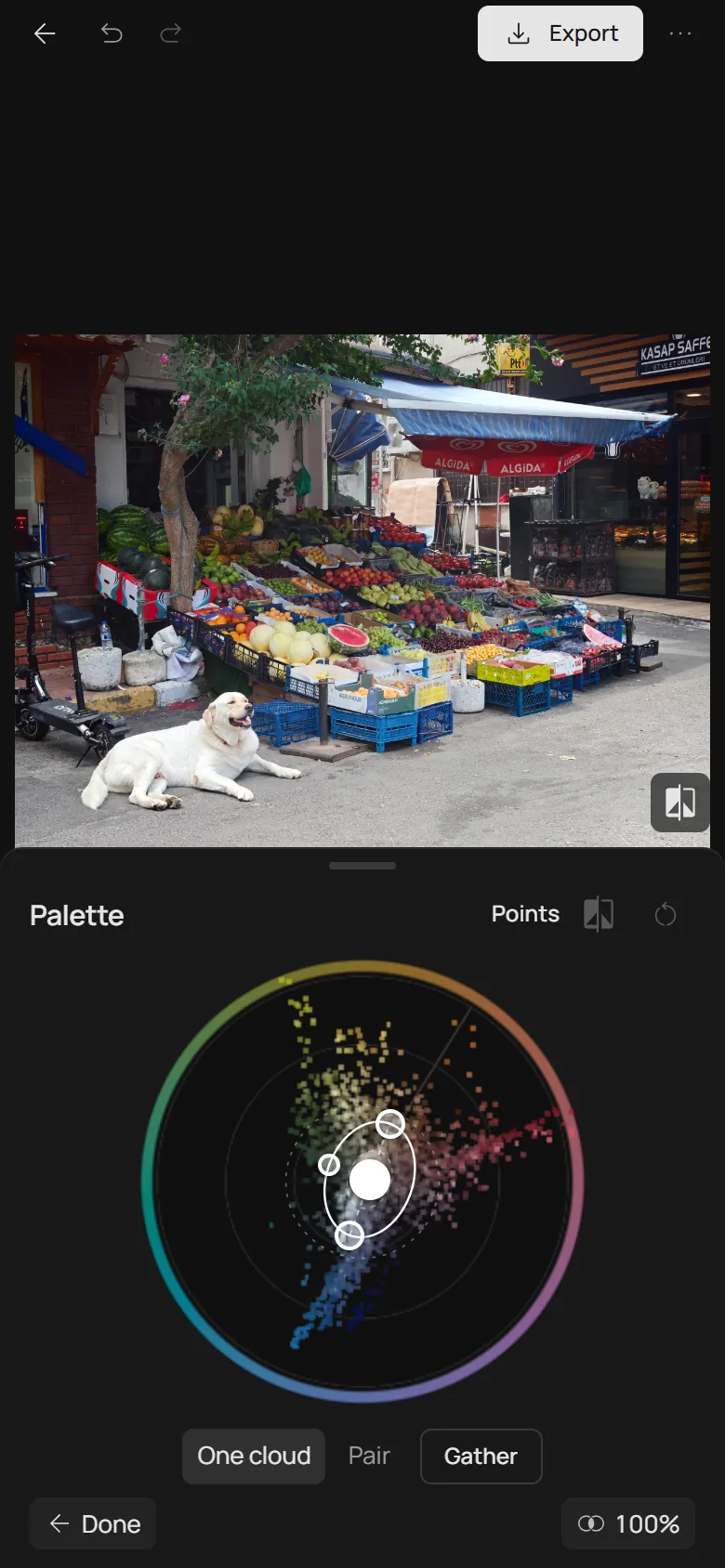
What beautiful pictures share
Look at where the cloud sits. In an ordinary phone photo it sits right on the cross. The camera tries to make white white and grey grey, so it takes away the colour of the light. What is left are the colours of things, and they point in different directions.
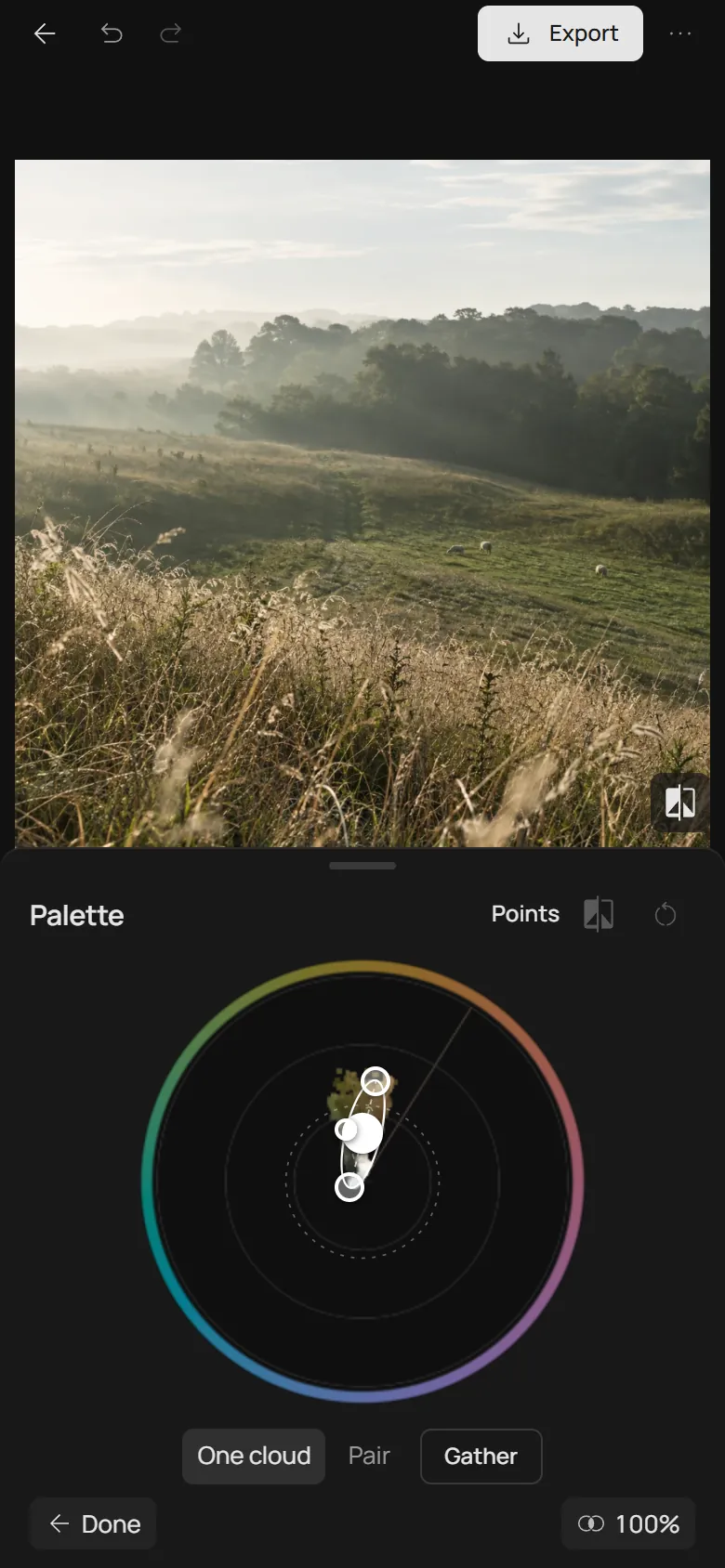
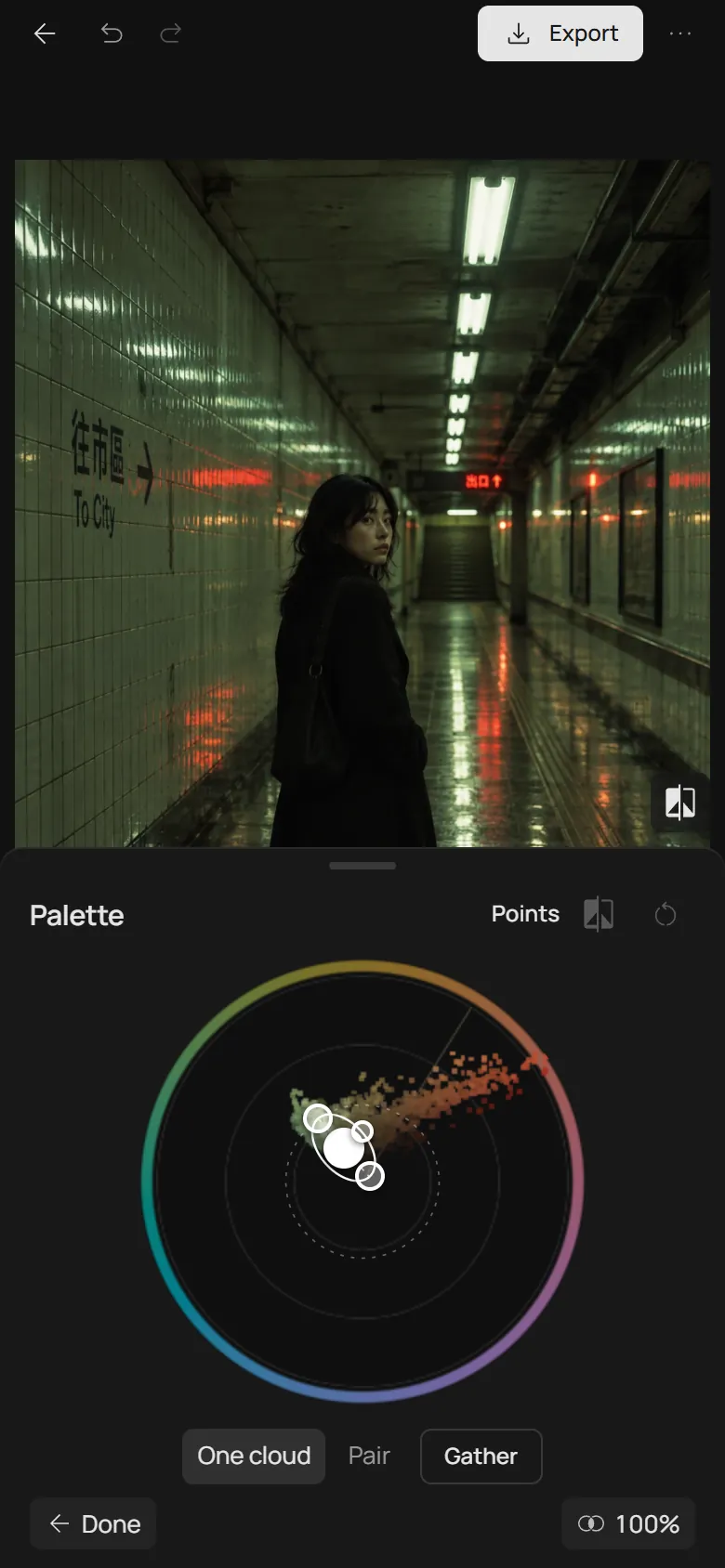
In a beautiful picture the whole cloud, greys included, has moved off the cross to one side. That shift is the colour of the light: low sun, a lamp, a misty morning, the green tubes of a station. One light touches every thing, so the colours agree. This is what colour harmony usually comes down to.
It is not about bright colour. The misty meadow has less colour than most phone photos, yet its cloud sits to one side, so it feels calm rather than dull. And the light does not have to be warm: in the station it is green, and the picture still holds together.
Gather: one tap
Gather moves every colour of your photo to its place in one cloud. It picks a warm light, or a cool one if your photo already leans cool, and moves the cloud off the cross by a little more than its own width. Whites stay almost white. A photo whose colours are already in order is left as it is.
Compare the fruit stall before and after. Before, the shade and the blue crates pull the cloud toward blue, while the fruit and the umbrella pull it toward red. After, the whole street sits on the warm side: the same things, under one afternoon light.
Gather writes ordinary settings: how far each colour turns and how strong it is, in Points, and the tints in Tone balance. Fine-tune any of them afterwards; a saved preset keeps them.
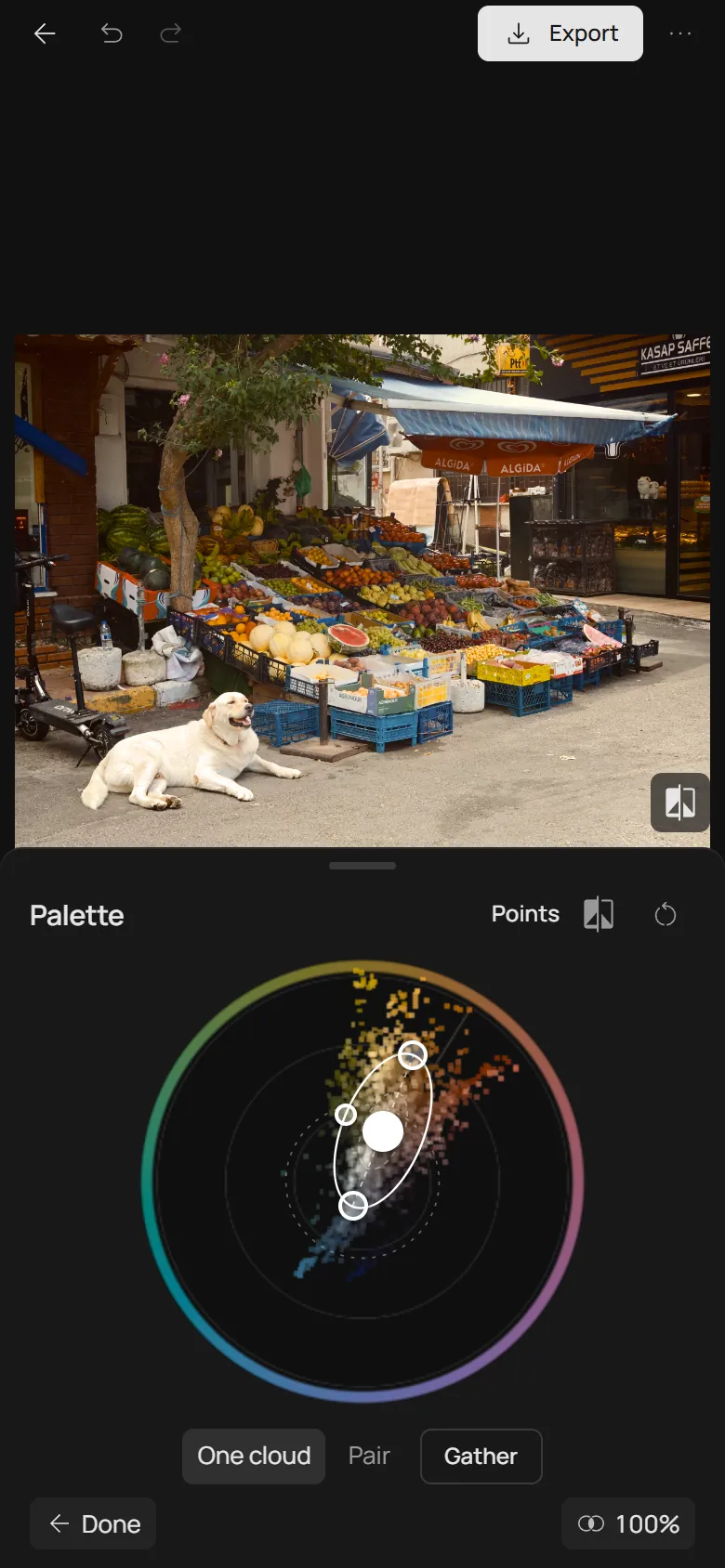
Your own shape, or a pair
Drag the handles to choose the cloud yourself. The centre is where the mood goes: toward orange for a sunset, toward olive for a summer film, toward teal for a cool evening. The two ends stretch the cloud: a longer cloud keeps more different colours, all along one line. The side handle sets the width: narrow is calm, wide is lively.
Pair gathers two clouds instead of one, a warm one and a cool one, like warm faces against a teal street, while the greys stay grey between them. It suits portraits and evening streets. Under a big blue sky it can turn the sky an unnatural cyan.
When the Cloud will not help
The Cloud puts colour in order, not light. A flat, grey day stays flat: give it light with the Mood pad or with exposure in Adjust. Mixed light, like neon beside daylight, has no single light to follow, so start gently there.
Far shapes can push skin toward olive. Keep faces near the skin line, or bring the centre back toward the cross.