
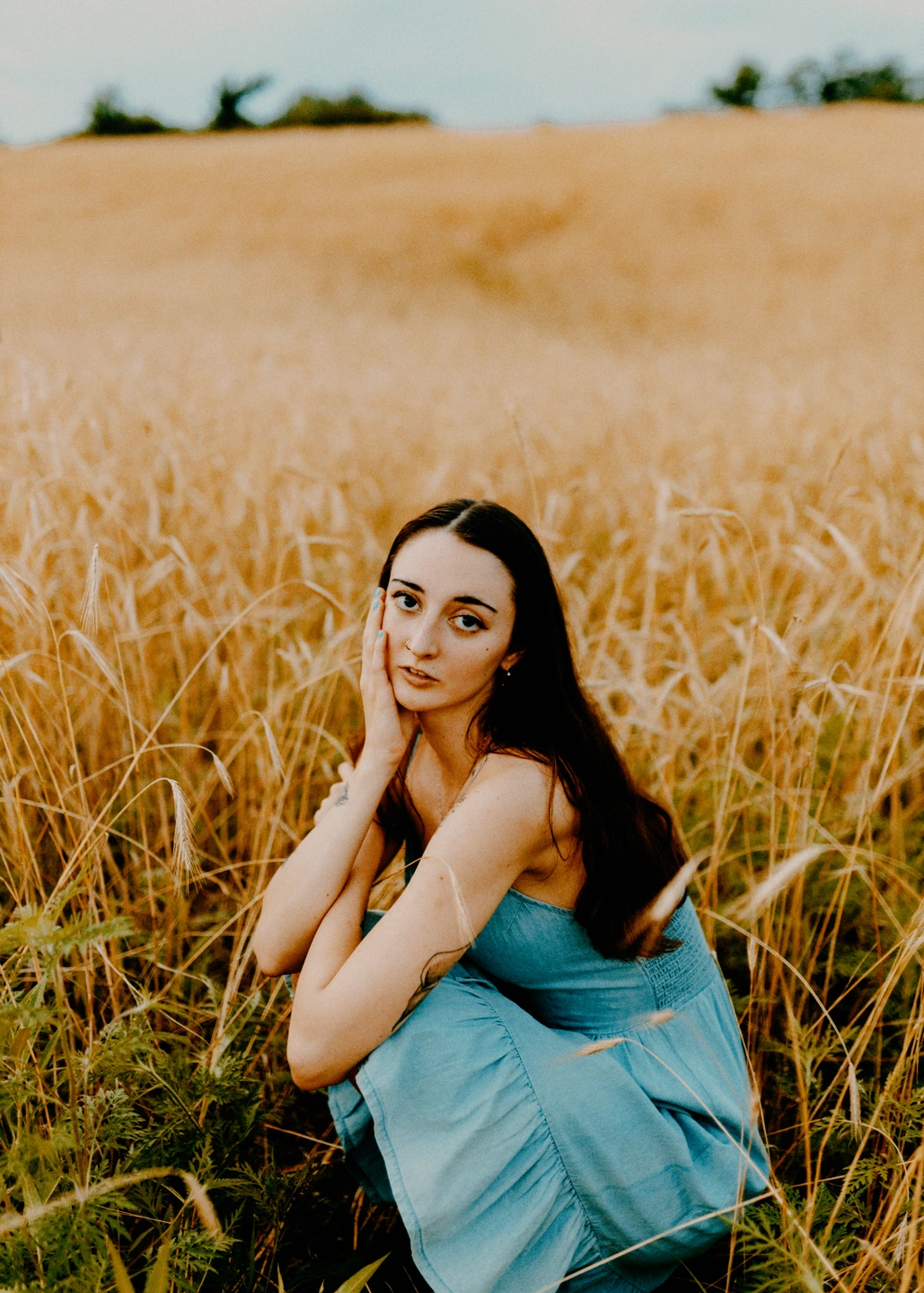
Another route through the same negative.
Kodak 2383 offers another print reference within the same Gold-based comparison. Read the blue dress and warm field together, and judge whether this finish suits the photograph.
Give a negative-film look its final colour and contrast with a print material. Small changes here can change the whole photograph.
Open editorPortra Endura Free · 8 materials with Pro
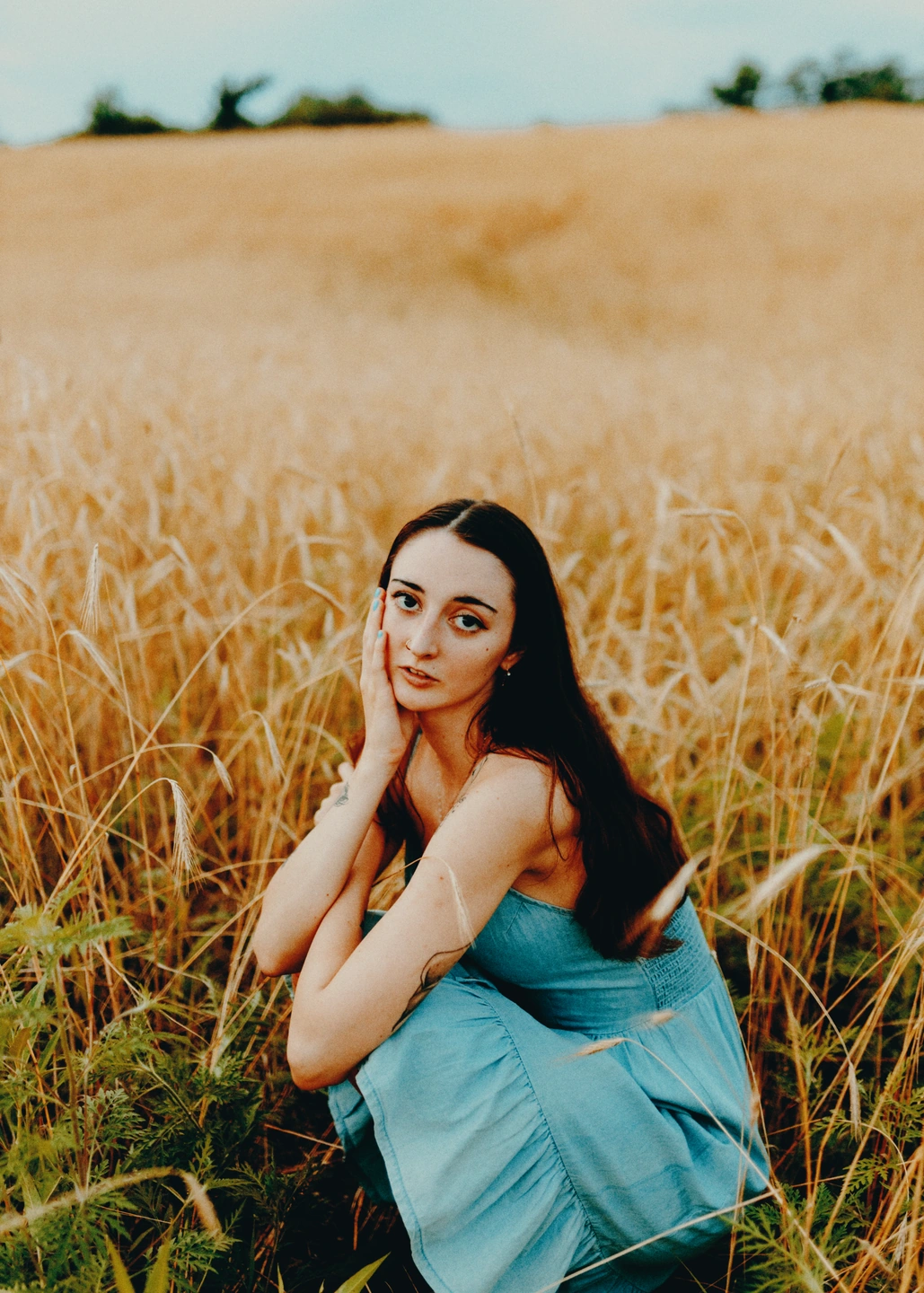
A film look is more than the name of the negative. The way the image is rendered for viewing also shapes its colour and contrast. In Photonica, print materials offer another decision within a negative-film treatment: keep the foundation you like and explore a different finish around it.
This is useful when the overall direction already feels right. Instead of changing the film and starting the comparison again, switch the material and look at the brightest surfaces, the depth of dark colours and the separation between similar tones. A quieter or more emphatic finish can alter the atmosphere without changing the subject or composition.
Portra Endura is available for free. Pro adds Supra Endura, Crystal Archive Type II, Ektacolor Edge, Endura Premier, Ultra Endura, Kodak 2383 and Kodak 2393. The choices include different kinds of photographic and print-film references; they are digital rendering options, not physical products being ordered.
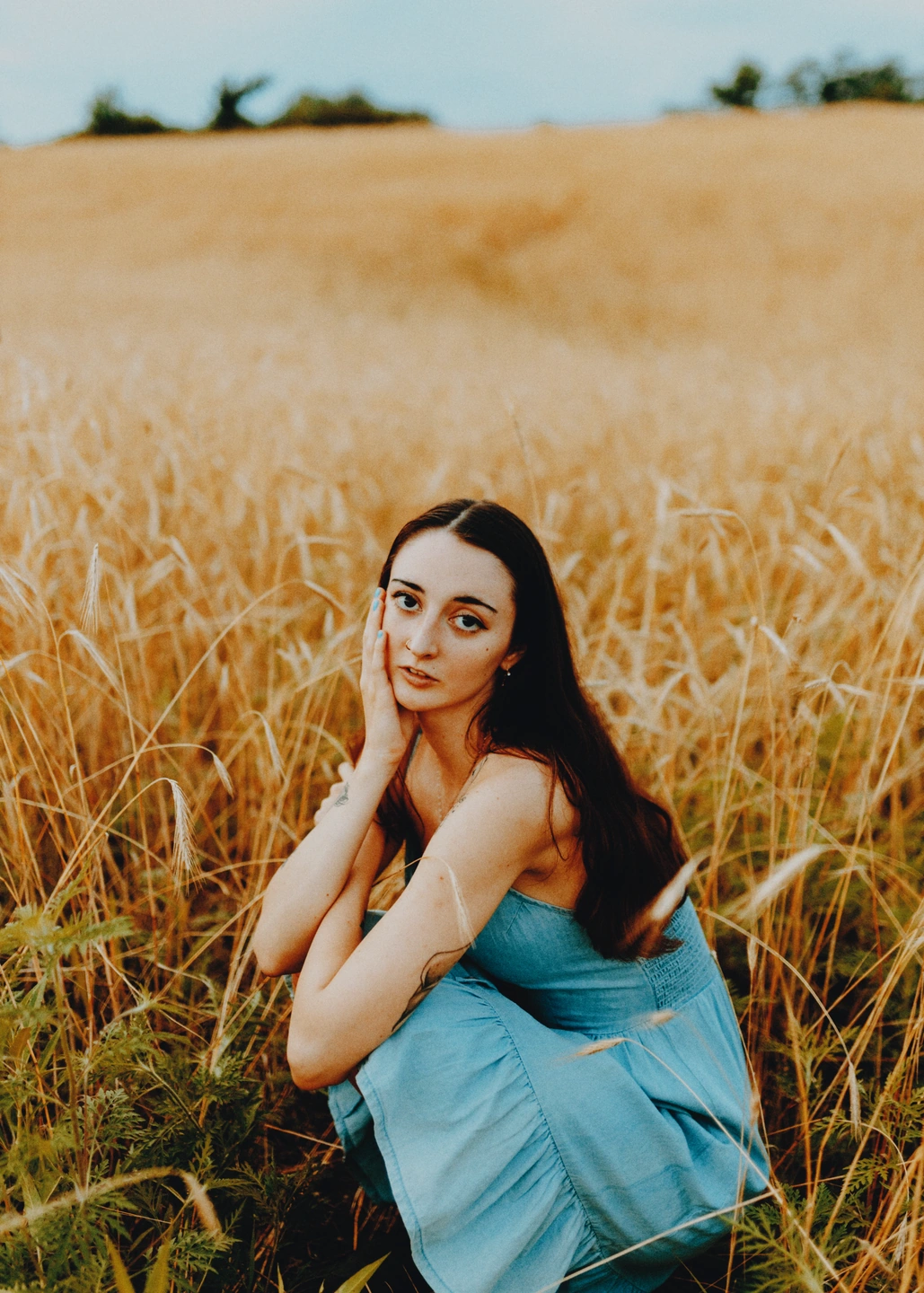
Gold 200 with Portra Endura / Gold 200 with Crystal Archive Type II. Both images already have a film treatment; only the material changes.
Compare the same field portrait with Gold 200 and two print materials: Portra Endura and Crystal Archive Type II. Watch the blue dress, golden grasses and skin together. A useful choice keeps those areas in balance instead of improving just one isolated colour.
Move the divider: Portra Endura on the left, Crystal Archive Type II on the right. The film stays Gold 200.
Made with Photonica. Source photographs retain their photographer’s original treatment. Film and optical effects are creative interpretations.
Kodak 2383 offers another print reference within the same Gold-based comparison. Read the blue dress and warm field together, and judge whether this finish suits the photograph.
A starting point for your photograph. Let the subject and the light guide the final choice.
When a film gives you appealing colour but the finish feels too heavy or too restrained, compare materials before stacking more adjustments. It is an efficient way to reconsider the whole rendering as one connected decision.
Try a consistent film-and-material pair across a few photographs from the same day. Judge the series as well as each frame. Bright daylight and shade can still need their own exposure settings.
Skin, cloth and painted walls reveal subtle relationships between warm midtones and pale highlights. Choose a material while those delicate transitions are visible, before adding grain or a distressed finish.
Pick a film with colour relationships you enjoy. Keep the other creative effects modest while making this first decision.
Switch materials and watch the same reference areas: a face, a white surface, a deep shadow and one important colour.
Revisit exposure, then add texture or a frame if it helps. Save the settings as a personal preset if you want to reuse the film-and-material combination.
Portra Endura Free · 8 materials with Pro Compare Free and Pro.
Photonica treats slide films as direct-scan colour foundations. Print-material selection applies to negative films, so it does not change the slide-film result.
No. It is a creative digital emulation. A physical print also depends on the printer, actual material, calibration, viewing light and the image file you provide.
Use the separate Film grain and Dust & scratches tools to control those textures. Keeping those decisions separate lets you choose a clean print-inspired finish.
Photography: Megan Ruth on Pexels. Edited in Photonica.
Bring a photograph and see where it takes you. Your photo stays on your device.
Open editorUse a WebGPU-compatible browser. Free JPEG export uses a working image up to 2560 px on its longest side before cropping.
Explore all photo editing tools