
JPEG export. Yours to keep.
Save the image you have made as an sRGB JPEG. Check the composition, texture and actual output size before you call it finished.
Open editorFree · original-resolution export Pro
The saved image is the final part of the edit.
Export turns your current photograph, treatment, crop and frame into a file you can keep or share. Photonica saves a processed sRGB JPEG, a practical format for everyday viewing and sharing. The editing and image processing happen locally on your device.
Free editing uses a working image up to 2560 pixels on its longest side before cropping. That is a limit on the working source, not a promise that every exported image will measure 2560 pixels. A smaller original, a tight crop or a frame changes the dimensions and the amount of image area inside the final result.
Pro offers export at the original photo’s resolution, subject to your device’s GPU and memory limits and the chosen crop and frame. It uses the available source detail; it is not an upscaler. Choose the resolution you need, then inspect the saved image rather than relying only on the editor’s fitted preview.
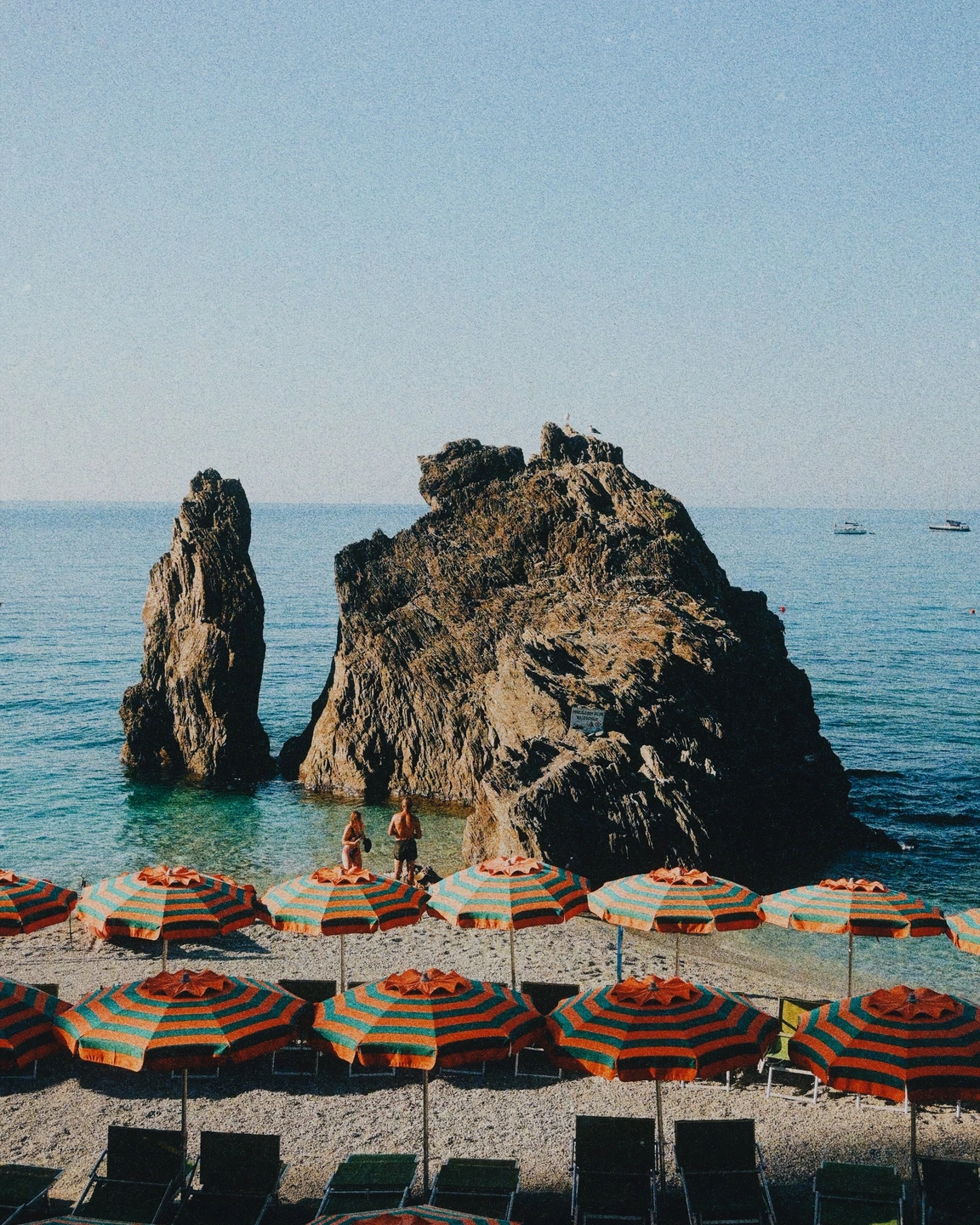
Finished JPEG treatment, displayed here as a web-optimised image. The source photograph already contains visible texture.
A complete photograph, ready to leave the editor.
This coastal image combines Gold 200, a small exposure adjustment, grain and diffusion. It was exported through Photonica’s JPEG path and then converted to website image variants. It illustrates a finished look rather than comparing compression settings or Free and Pro resolution.
Made with Photonica. Source photographs retain their photographer’s original treatment. Film and optical effects are creative interpretations.
When to use jpeg export.
A starting point for your photograph. Let the subject and the light guide the final choice.
Sharing a finished edit
Save a JPEG once the whole image reads well at the size you expect people to see. Inspect faces, bright edges and any frame text after export, especially if the treatment includes strong texture.
Keeping an image beyond the session
Export before leaving the editor. The photo session is not permanent storage, and saving a preset keeps the settings rather than a finished copy of the photograph.
Preparing a larger result
Use original-resolution export with Pro when the source and device support the size you need. Check the actual output dimensions and the requirements of your intended use rather than assuming a larger file is always necessary.
Make the next choice.
- JPEG export
- Save the currently processed image. The result includes your crop and any frame applied to the photograph.
- Original-resolution export
- With Pro, use the original source resolution where the device can support it. Cropping still reduces the image area, and a frame affects its final layout.
- Fit and 100%
- Review composition at Fit and texture at 100% before saving. Fine grain, softness and small marks deserve a closer look.
How to use jpeg export in Photonica.
Inspect the complete result
Check exposure, crop edges, subject placement and the frame. Compare the treatment with the source one last time.
Check detail at a useful scale
Inspect skin, fine texture and bright edges. Reduce effects that only looked balanced in a small preview.
Save and open the JPEG
Verify the dimensions and appearance of the saved file. Keep your original separately so you can make another interpretation later.
Free · original-resolution export Pro Compare Free and Pro.
A few things to know.
Can I export without an account?
Yes. Free tools and standard JPEG export can be used without an account. Active Pro effects still require Pro access, even when using the standard export size.
Why is my exported image smaller than 2560 pixels?
The free working image is capped at 2560 pixels on its longest side before cropping. A smaller source or a crop can produce a smaller output; the frame also changes the final layout.
Will my photos be uploaded for export?
No. Image processing and JPEG creation happen locally on your device. Account features save recipes, not a cloud photo library.
Photography: William Posser on Pexels. Edited in Photonica.
Make it your photograph.
Bring a photograph and see where it takes you. Your photo stays on your device.
Open editorUse a WebGPU-compatible browser. Free JPEG export uses a working image up to 2560 px on its longest side before cropping.
Explore all photo editing tools