
Crop & rotate. Find your frame.
Find a stronger composition, straighten a horizon and choose the proportions that suit the photograph you want to make.
Open editorFree
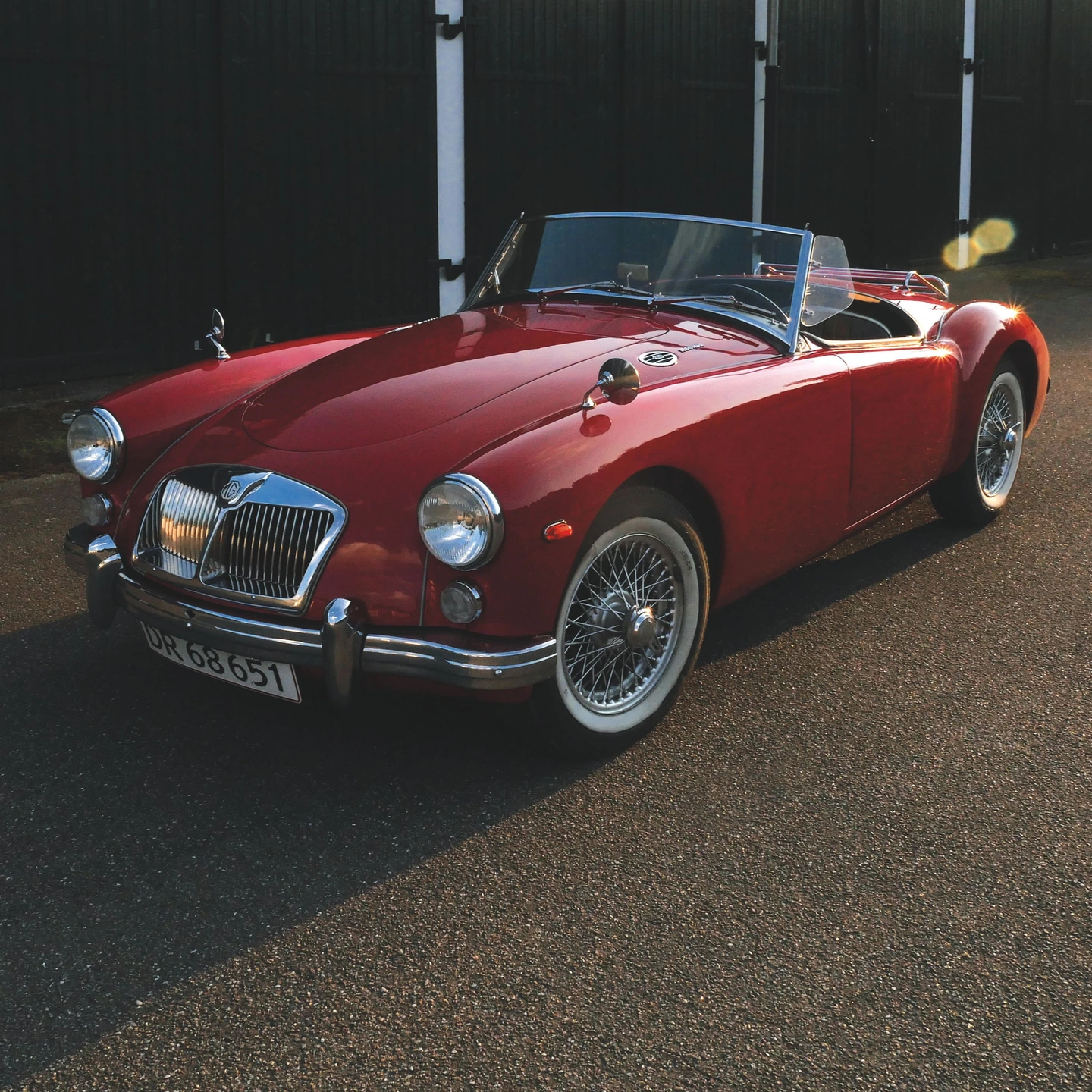
Composition continues after the shutter.
Cropping is a decision about relationships. Removing a strip of empty pavement may bring an object forward; leaving more room in one direction can make a pose feel less confined. A different aspect ratio can change the balance without adding any effect at all.
Photonica lets you crop freely or choose an aspect ratio, straighten, rotate and flip. Use those tools to find the picture within the source rather than forcing every photograph into the same shape. A wide scene may depend on its surroundings, while a square can bring attention to a central relationship.
Straightening is especially useful when a horizon or architectural line unintentionally pulls the frame off balance. A small rotation can make the composition feel calmer, but it also changes what fits within the available image. Recheck the edges after adjusting the angle.
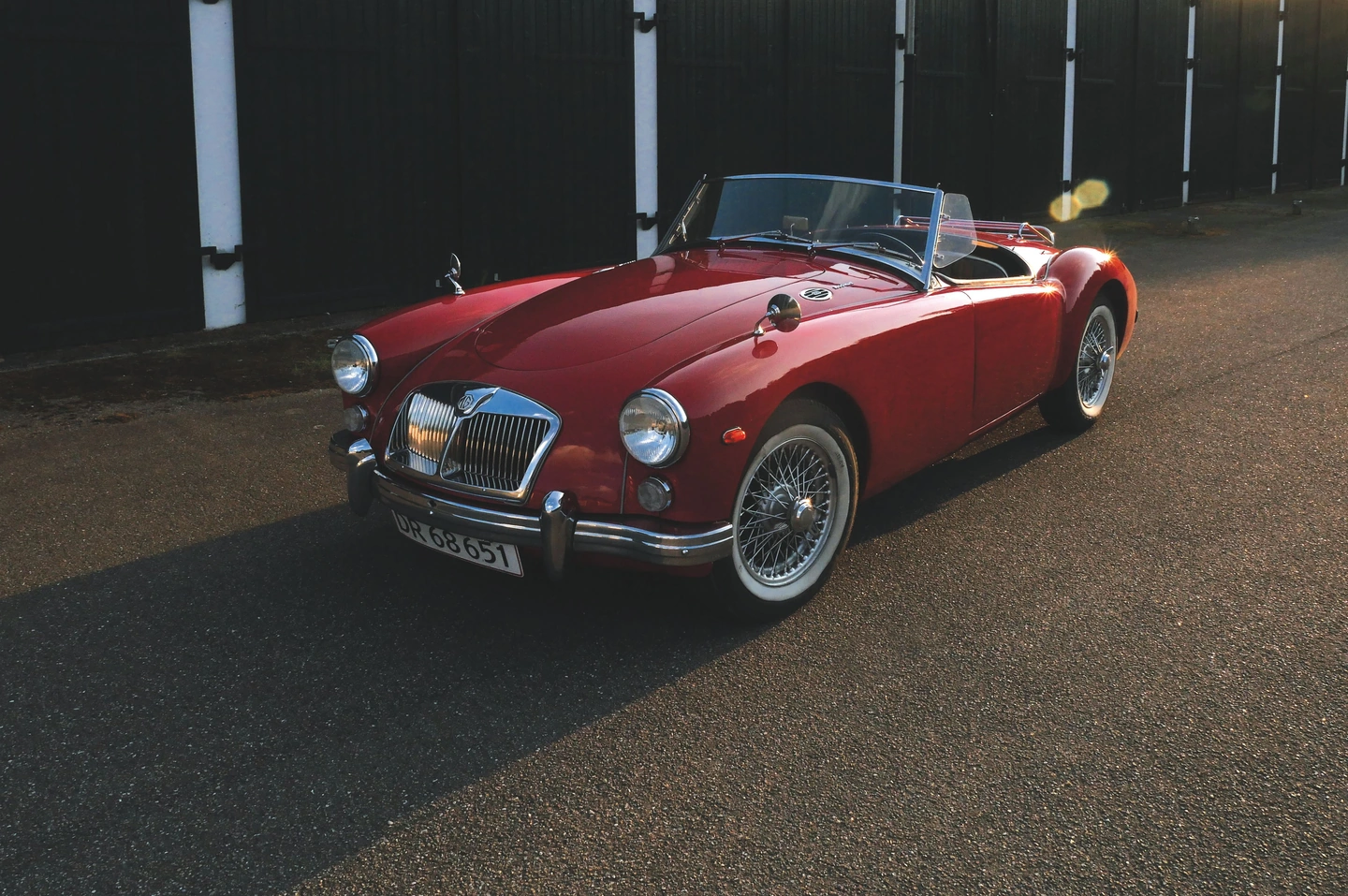
Wide source / square crop. Only the composition changes; no colour treatment is added in this example.
The same scene, a different emphasis.
The wider source includes more of the street around the roadster. The square crop concentrates the arrangement into a different shape. Both complete images are visible here so you can judge what was removed as well as what remains.
Made with Photonica. Source photographs retain their photographer’s original treatment. Film and optical effects are creative interpretations.
When to use crop & rotate.
A starting point for your photograph. Let the subject and the light guide the final choice.
A subject with a distracting edge
Inspect the corners for partial objects or bright patches that pull attention away. A small crop can remove the distraction while preserving the space that gives the subject context.
A horizon that feels unsettled
Use straightening to make a slight tilt deliberate or remove it. Check more than one reference line when perspective means the scene does not contain a single reliable horizontal.
A sequence with shared proportions
A consistent aspect ratio can make a group easier to present. Choose each crop individually so the shared format does not cut through important gestures or strip every frame of its surroundings.
Make the next choice.
- Aspect ratio or free crop
- Choose fixed proportions when presentation calls for them, or crop freely when the scene needs a more individual shape.
- Crop placement
- Move and resize the crop around the useful content. Judge the negative space as carefully as the subject itself.
- Straighten and rotate
- Refine the angle or rotate the image into the orientation you want. Review the corners after rotation.
- Flip
- Reflect the photograph when that supports an intentional composition. Be careful with lettering, recognisable locations and details whose orientation matters.
How to use crop & rotate in Photonica.
Identify the main relationship
Decide what the picture is about: a person and their surroundings, a repeated shape, or one object in open space.
Try two genuinely different crops
Compare a generous frame with a tighter one, or a wide ratio with a square. Notice how the remaining space changes the subject’s presence.
Inspect edges before export
Check hands, heads, objects and horizon lines. Revisit any vignette or frame after the composition changes.
Free Compare Free and Pro.
A few things to know.
Will my crop be saved in a personal preset?
No. Crop and frame decisions belong to the photograph. A preset saves the treatment so you can compose each new photo independently.
Can rotating reveal more of the scene?
No. Rotation rearranges the existing image area. It cannot generate content outside the original photograph.
Should I crop before adding a frame?
It is usually clearer to establish the image composition first, then choose the frame and its Fit or Fill placement. Review the combined result before saving.
Photography: Nordic Overdrive on Pexels. Edited in Photonica.
Make it your photograph.
Bring a photograph and see where it takes you. Your photo stays on your device.
Open editorUse a WebGPU-compatible browser. Free JPEG export uses a working image up to 2560 px on its longest side before cropping.
Explore all photo editing tools