
Dust & scratches. A little history.
Mix fine dust, fibres and scratches, or explore heavier wear. Place a little history on the image without losing the photograph.
Open editorPro
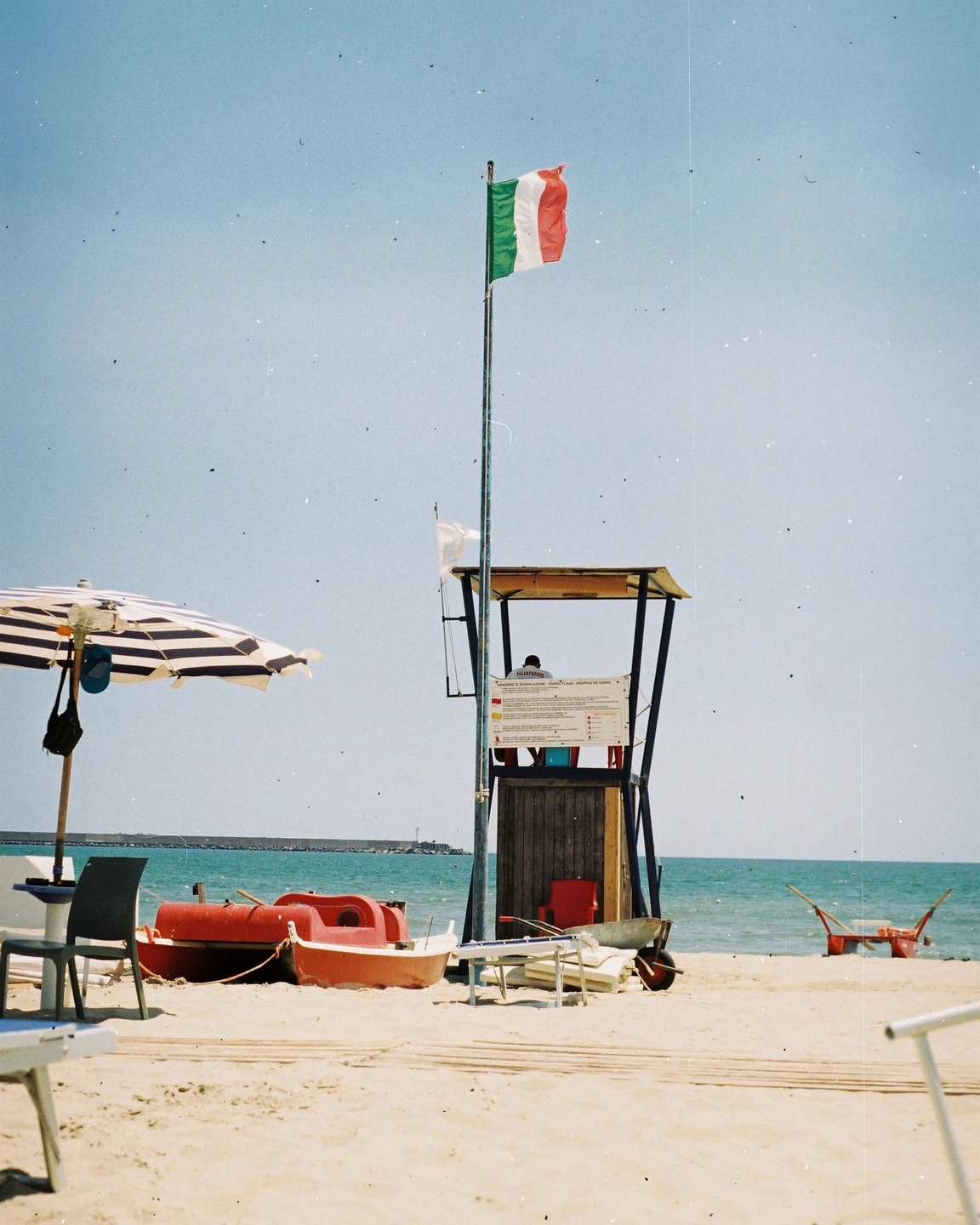
A mark can become part of the image’s rhythm.
Small surface marks interrupt a photograph in ways that grain does not. A speck rests in a quiet sky, a fine fibre crosses a smooth area, a scratch introduces a line that was never in the scene. Used sparingly, those interruptions can suggest a handled print or an imperfect scan.
Photonica separates five families: dust, fibres, transport scratches, scuffs and heavier damage. Each family has its own amount and visibility, so you can choose fine imperfections without automatically adding large distressed patches. Shared controls let you refine size, direction and whether the marks are light, dark or mixed.
The pattern is generated from a seed. Regenerating gives you another arrangement; the saved settings describe the chosen pattern as part of the treatment. Take time to inspect where marks land. An appealing distribution in a blank background can become distracting when a strong line crosses an eye or an important object.
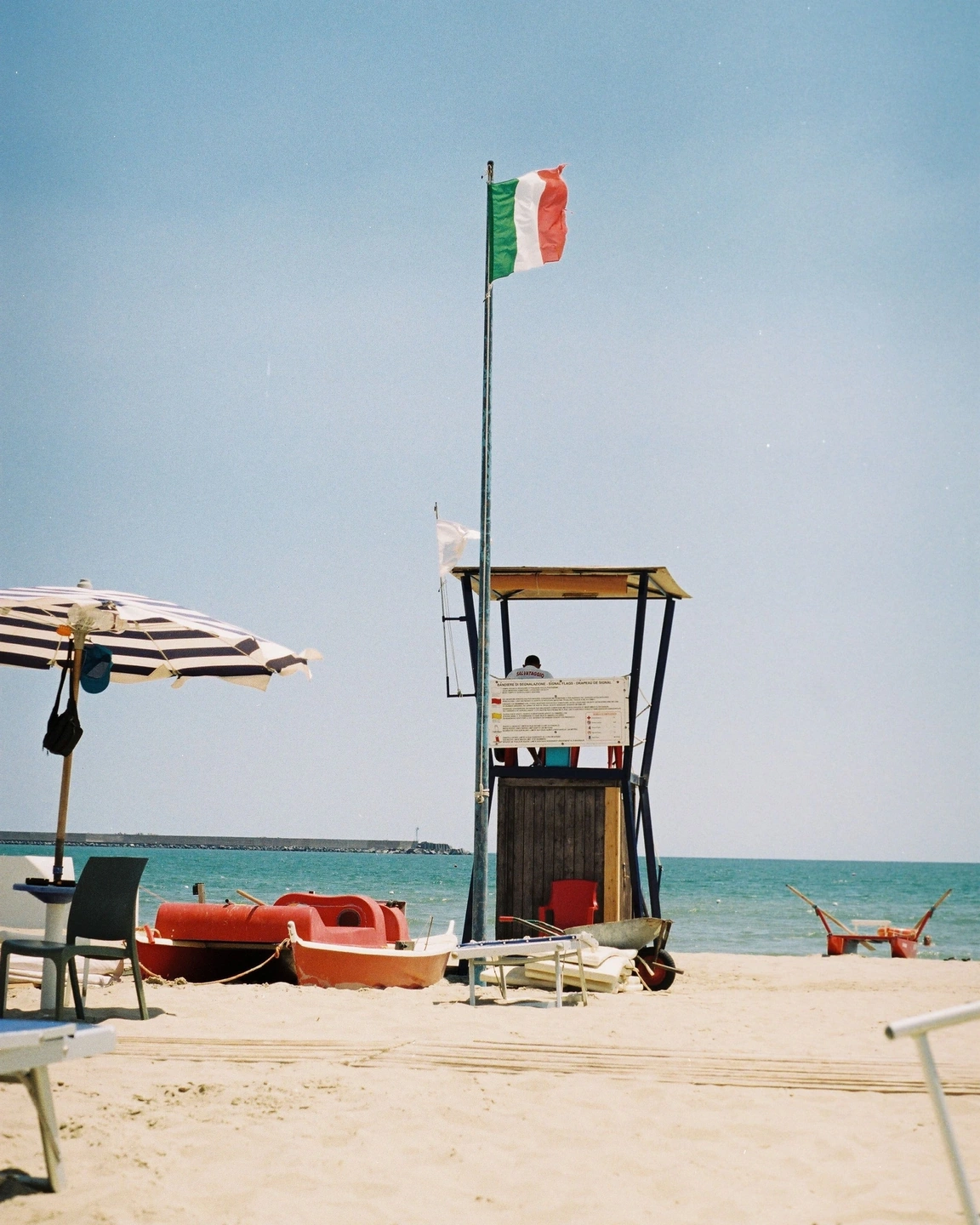
Wear off / added dust and scratches. The effect adds marks; it does not reveal damage in the source file.
Read the photograph through the surface.
Compare the smooth areas first to see the added marks, then return to the main subject. This example makes the wear visible enough to inspect. Your own image may only need a fraction of that presence to suggest a more handled finish.
Move the divider to compare. Before on the left, after on the right. Zoom in to look closer.
Made with Photonica. Source photographs retain their photographer’s original treatment. Film and optical effects are creative interpretations.
When to use dust & scratches.
A starting point for your photograph. Let the subject and the light guide the final choice.
A lightly imperfect scan impression
Start with fine dust and a few fibres. Keep their visibility low enough that the image remains the first thing you notice, particularly around faces and clean graphic shapes.
A more distressed editorial treatment
Scuffs and heavier damage can suit a deliberately worn presentation. Give the marks a clear role and inspect their placement before combining them with strong grain or colour aging.
A print-inspired still life
Quiet surfaces provide room for restrained texture. A small number of marks can add a tactile feeling without changing the image’s lighting or requiring a heavily faded palette.
Find your balance.
- Five families
- Balance dust, fibres, scratches, scuffs and heavy wear separately. Use only the families that suit the intended finish.
- Amount and visibility
- Control the presence of each family and how strongly its marks read. A few visible marks feel different from many faint ones.
- Size and direction
- Refine the scale and directional character of the pattern. Check the result against the size of the subject and the geometry of the frame.
- Tone and new pattern
- Choose mixed, light or dark marks and regenerate their arrangement. Review a new pattern before deciding it belongs in the final image.
How to use dust & scratches in Photonica.
Choose one family to begin
Start with dust or fine scratches, keeping the others restrained. This makes it easier to understand what each addition changes.
Inspect the important areas
Look closely at faces, lettering and small objects. Regenerate if a prominent mark interrupts something you need to keep clear.
Check the overall weight
Return to Fit and compare with the effect off. Reduce the marks if they become more memorable than the photograph.
Pro Compare Free and Pro.
A few things to know.
How is this different from film grain?
Grain is a distributed image texture. This tool adds individual marks and larger wear patterns with their own shapes, direction and visibility.
Can I keep a pattern I like?
The pattern seed is part of the settings, so the chosen arrangement can be reproduced as part of the treatment. Check it again when applying a preset to a differently composed photograph.
Photography: Eugene Laszczewski on Pexels. Edited in Photonica.
Make it your photograph.
Bring a photograph and see where it takes you. Your photo stays on your device.
Open editorUse a WebGPU-compatible browser. Free JPEG export uses a working image up to 2560 px on its longest side before cropping.
Explore all photo editing tools